 mousePDF
Building a PDF editor with no server at all
Every online PDF tool we could find works the same way: you upload a file, a machine somewhere does the work, you download the result. mousePDF does none of that. There is no upload endpoint, no job queue, no temporary storage to purge. This is an account of what that actually costs to build, and where it gets uncomfortable.
What “no server” means precisely
The site is static files. When you open a document, it is read by the page with the File API, decoded in the tab, and written back out with a download. Nothing crosses the network. That is not a privacy policy, it is an architecture: there is no code path that could send your document anywhere, because there is nothing on the other end to receive it.
The consequence people notice first is that the tool keeps working when the connection dies. Once the page has loaded, you can turn off the network and carry on editing. The consequence we noticed first is that every hard problem now runs on the slowest device your visitor happens to own.
The three libraries doing the heavy lifting
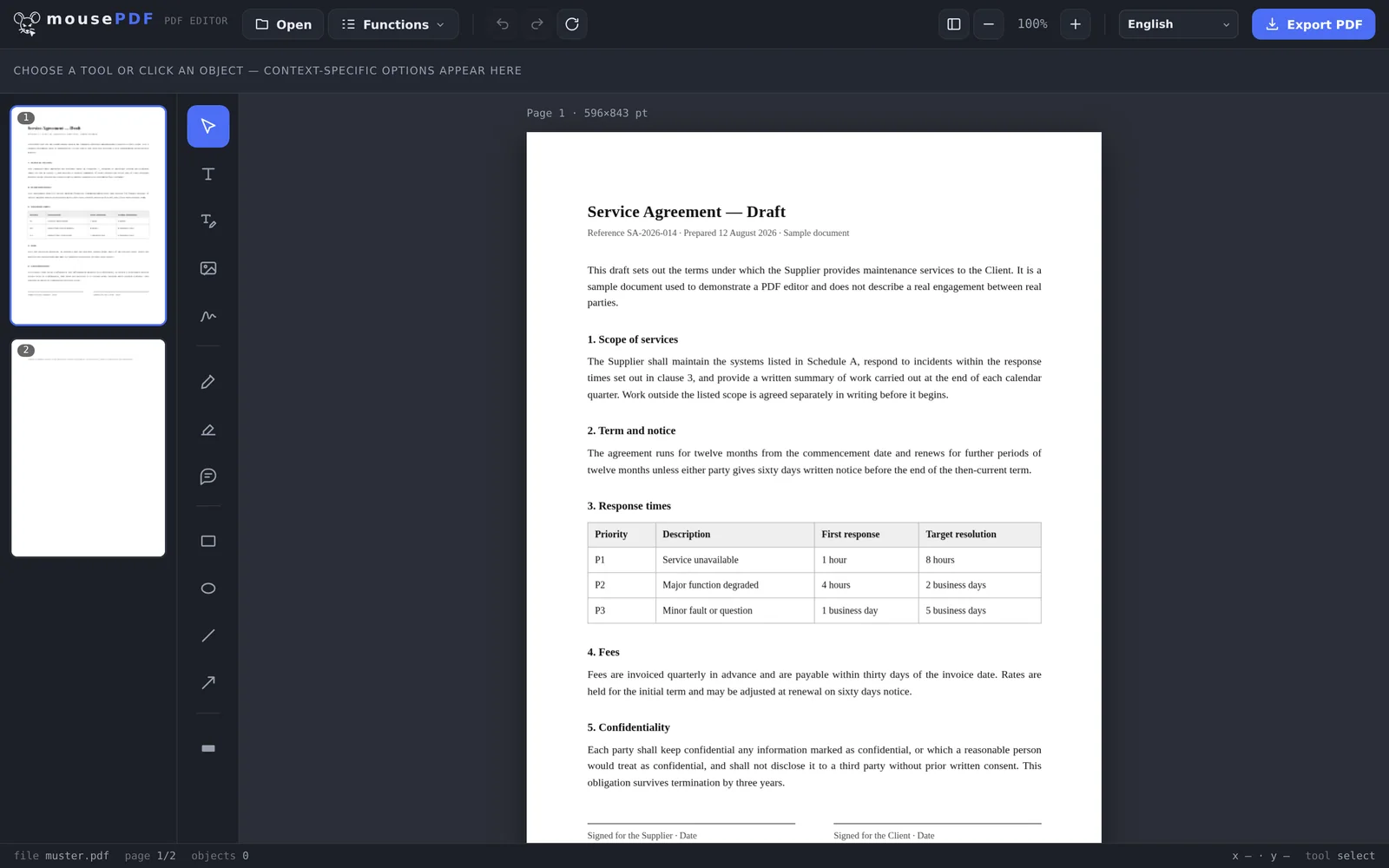
Displaying a PDF and writing one are completely different problems, and they are handled by different code. pdf.js parses and rasterises pages for display. pdf-lib builds the output file. They do not share a document model, which means every edit has to be expressed twice: once as something you can see, once as something that can be written into a file.
That split is the single largest source of complexity in the project, and it is not an accident of our design. It is what happens when you assemble a document editor from a renderer and a writer that were never meant to meet.
Where the memory goes
A single A4 page rendered at twice its nominal size is 1190×1684 pixels. As an uncompressed bitmap that is roughly 8 MB. Render a 160-page document and hold every page, and you have asked a phone for 1.3 GB of image data.
So nothing is held that does not need to be. Three separate caches evict on a least-recently-used basis:
| Cache | Holds | Ceiling |
|---|---|---|
| Page backgrounds | Rendered page bitmaps | 14 pages |
| Text layers | Extracted text positions | 20 pages |
| Thumbnails | Sidebar previews | 30 pages |
The text-layer ceiling deliberately sits above the background ceiling, so that a page whose bitmap has just been evicted does not immediately lose its text as well when you scroll back a little.
We found this the unglamorous way. An early version rebuilt the thumbnail strip by pulling each full-size page background through the cache, and left the canvas elements in the document afterwards. Measured on a real session: 122 canvas elements, 13.5 MB, never released. Thumbnails now render from their own small canvases and are torn down when they scroll out of view.
The parts that were harder than expected
Scanned documents. Black-and-white scans are usually stored with CCITT or JBIG2 compression, decades-old fax formats that are still ubiquitous because scanners still emit them. pdf.js decodes those through a WebAssembly module that ships separately from the main library. We had not shipped it. Scanned PDFs opened looking almost blank, and it took an embarrassingly long time to work out that the renderer was quietly failing on exactly one class of image and drawing nothing.
Annotations from other programs. A PDF annotation can specify its appearance, or it can leave that to the reader by way of a “default appearance” string. Some programs write checkmarks and stamps without one. That is legal, and it leaves a renderer with no font to draw the glyph in, so it draws something stunted. We repair those annotations when the document is opened rather than rendering them wrong.
Editing text. This one is not solvable, only survivable. A PDF stores the position of each character, not paragraphs that reflow. There is no concept of a line that can grow. Replacing a word means covering the old one and drawing a new one at the same spot, matching the surrounding size and colour as closely as we can read them. Short corrections work well. Rewriting a paragraph does not, and we say so on the page rather than letting people find out mid-task.
Because a covered word is only covered, an edited page is flattened to an image when you export. The old text genuinely leaves the file, at the cost of that page no longer being searchable. Only pages you actually changed are affected. There is no checkbox for this: an option that silently leaves the original text underneath would be a trap.
Encryption without a server is a strange feeling
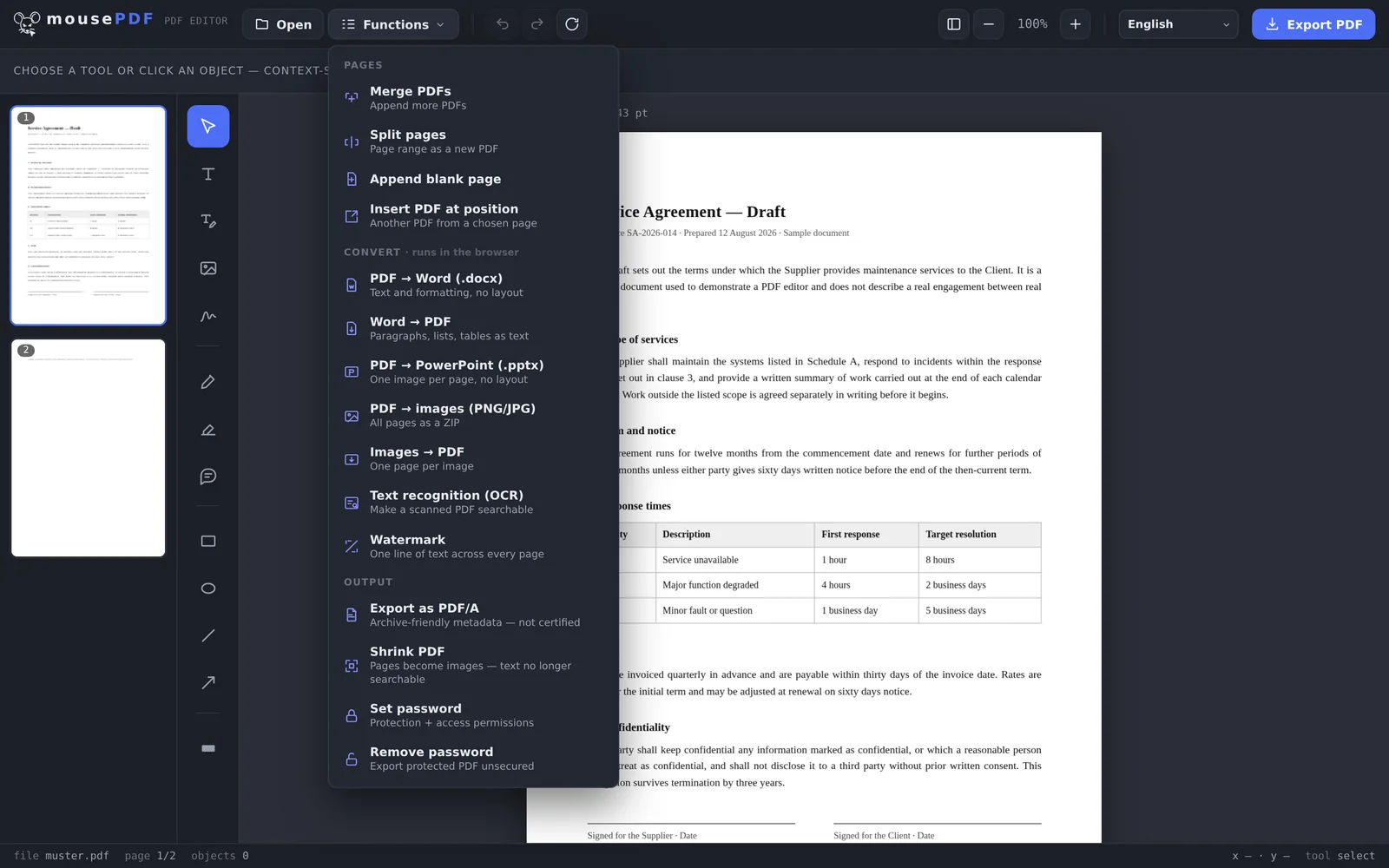
Setting a password on a PDF means implementing the encryption revision the format specifies, in the browser, correctly, with no way to check the result against a server-side reference. mousePDF writes AES-256 with encryption revision 6, the current standard. Getting it wrong does not throw an error; it produces a file that opens nowhere. The only meaningful test is opening the output in readers you did not write — Acrobat, Preview, and a handful of mobile apps — and seeing whether they accept the password.
What we would tell someone starting the same project
- The renderer and the writer will not agree on anything. Budget for it.
- Memory is your real constraint, not CPU. Measure on a phone, not a laptop.
- Every format quirk you skip becomes a class of documents that silently looks broken rather than a class that errors. Silent is worse.
- Publish the limits. People forgive a tool that says what it cannot do far more readily than one that lets them discover it after twenty minutes of work.
Continue with what actually happens when a PDF is password-protected.