 mousePDF
Convert PDF to Word without uploading, without an account
Export PDF text as an editable Word file (.docx). The conversion runs in your browser, and your file is never uploaded anywhere.
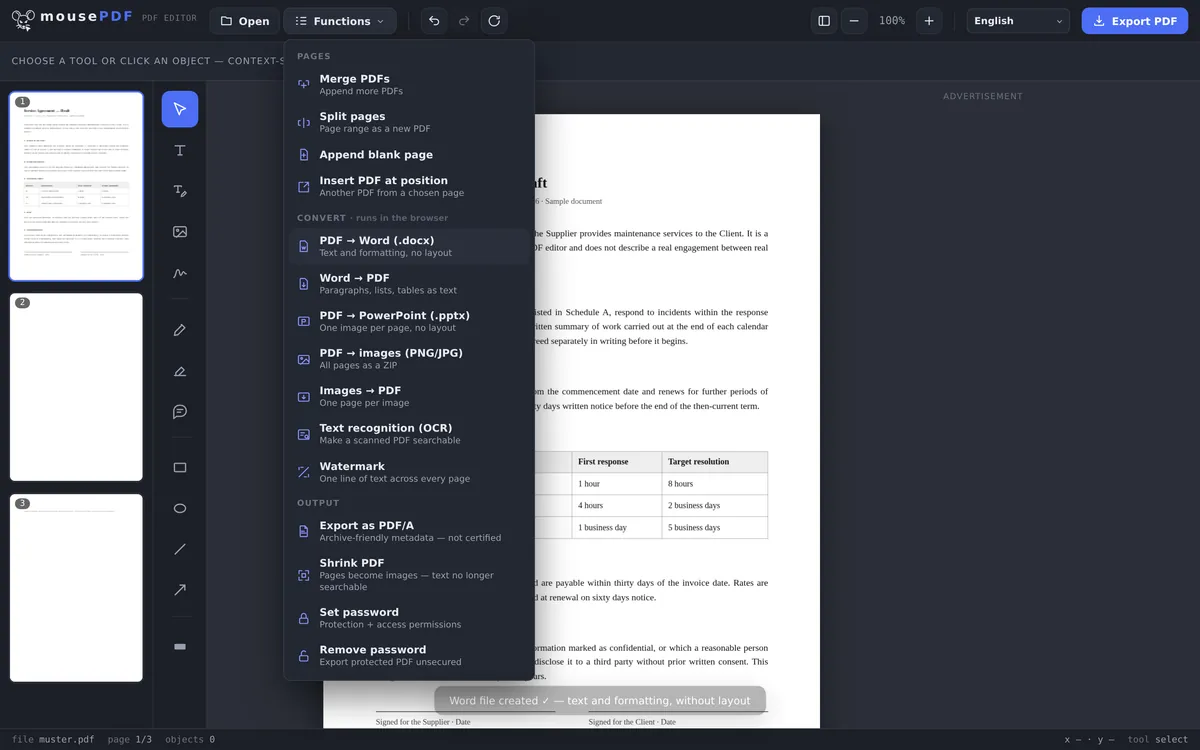
Three simple steps
Open a PDF
Open a PDF by dragging it into the browser.
Choose “PDF to Word”
Start the Word conversion from the “Convert” menu.
Save the Word file
Download the finished .docx file directly.
Text and formatting come across, layout does not
mousePDF carries text and basic formatting (like paragraphs) over from the PDF into the Word file. What it doesn't preserve is the exact page layout. PDFs are built for fixed positioning, Word documents for flowing text. If you need a pixel-perfect copy of the layout, PDF-to-Word conversion generally isn't the right tool, regardless of which one you use. For the most common use case, reusing or editing text from a PDF without retyping it, it does the job well.
The Word document you actually get
The conversion pulls the text out of the PDF and writes it as paragraphs into an A4 Word document. The text itself transfers in full.
What does not come along, we would rather say up front: no images, no tables, no layout. The generated file contains no image folder, no table structure and no text frames. A two-column PDF therefore becomes single-column, and a logo in the letterhead is missing.
That is a deliberate decision, not an oversight. A PDF does not know what a table is. It only knows where lines and characters sit. Reconstructing one from that is unreliable across the whole industry, and a result that is almost right costs more time to fix than formatting the text yourself.
When to reach for this, and when not to
It works well for: reusing text from a PDF, lifting a quotation, taking an old contract as the basis for a new one, rewriting a letter whose source only exists as a PDF.
It is not enough for: rebuilding a designed document faithfully in Word, editing an invoice with its table intact, reworking a brochure with images. If that is what you need, ask the sender for the original.
One special case: scanned PDFs contain no text to pull out at all, because the page is a photograph. There, run PDF text recognition (OCR) first to turn the picture into text; after that the conversion works.
Frequently asked questions
Does the layout stay intact when converting? +
Not exactly. Text and formatting are preserved, but not a pixel-perfect layout. That's a technical limit of PDF-to-Word conversion in general, not specific to mousePDF.
Are images from the PDF carried over too? +
The focus is on text and structure. For pure text reuse, that's usually enough.
Do I need to sign up to get the Word file? +
No, the file is generated and downloaded directly in your browser. No account, no email address required.
Does this work with scanned PDFs? +
Only if the PDF already contains real text, not if every page is just an image. If you have a scanned document, run OCR first (the text recognition feature), then convert the result to Word.
Are images from the PDF kept in the Word document? +
No. The generated file contains text only: we checked inside it, and there is no image folder. If you need the pictures, convert PDF to images is the right route.
Why does my Word document look nothing like the PDF? +
Because the text is carried over, not the layout. You get A4 paragraphs, not a replica of the page. That is intentional: fixing up an approximate replica takes longer than formatting the text afresh.
Are tables converted as tables? +
No. The cell contents appear as text and the table structure is lost. A PDF does not store tables, only the position of lines and characters.
You might also find this useful
Convert Word to PDF
Export a Word document as a PDF.
Convert PDF to images
Export every page as a PNG image.
Convert images to PDF
Turn JPG or PNG images into a PDF document.
Convert PDF to PowerPoint
Turn every PDF page into an image slide in a PowerPoint file.
PDF text recognition (OCR)
Make scanned PDFs searchable, in multiple languages.