 mousePDF
Convert Word to PDF without uploading, right in your browser
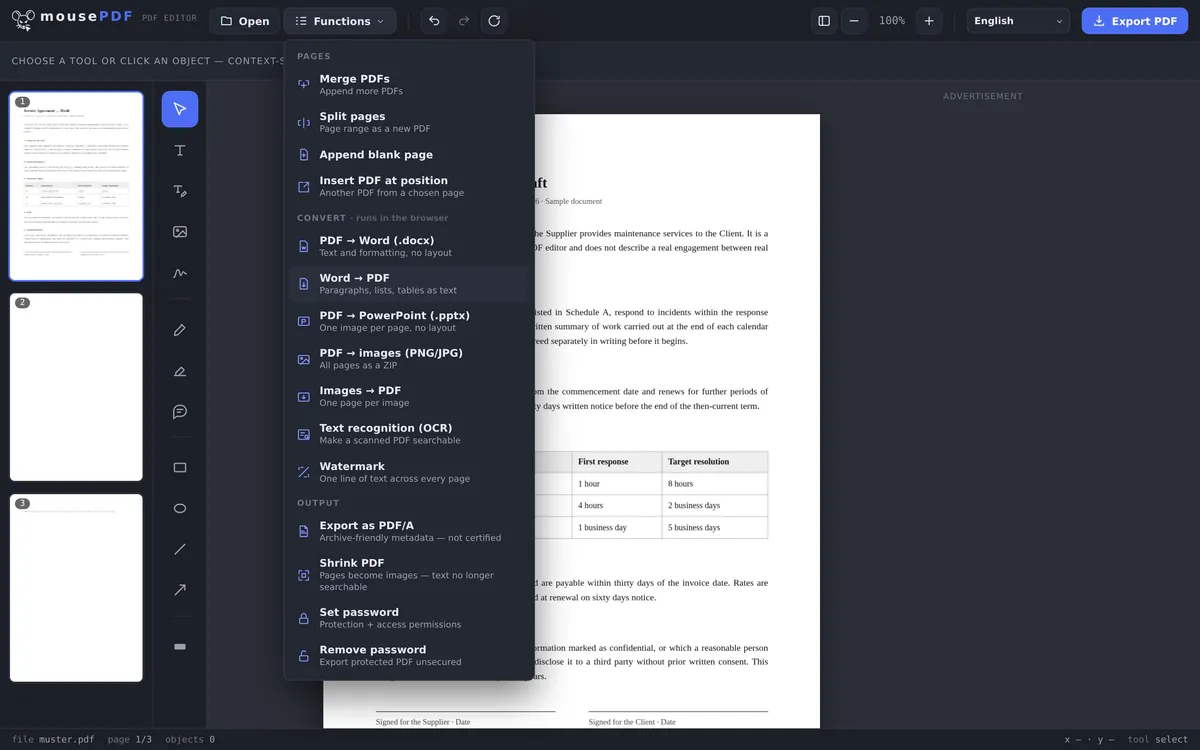
Export a Word document (.docx) as a PDF without uploading the file. Paragraphs, lists, and tables are carried over as text.
Three simple steps
Open a Word file
Choose your .docx file from the “Convert” menu.
Start the conversion
mousePDF converts the file locally in your browser.
Save the PDF
Download the finished PDF directly, with no watermark.
From Word file to finished PDF
Paragraphs, lists, and tables from your Word file are transferred into the PDF as text. That's ideal for text documents, cover letters, simple reports, or lists. For very complex layouts with many embedded graphics, the result may differ from the original. Once converted, the PDF opens directly in the same editor, so you can keep working on it right away: add text, sign it, or merge it with other PDFs.
Paragraphs, headings, bold and italic
The body of the .docx file is read. Paragraphs, headings and bold or italic passages come across, the things that make the text readable and structured.
Images and tables are not carried over. That belongs here before you wonder about a blank spot: a mail-merge letter loses its logo, and a price list loses its grid while keeping the cell contents as text.
Older .doc files in the legacy binary format cannot be read, only .docx, the format Word has used since 2007. If you have an old file, save it once as .docx in Word.
Why turn it into a PDF at all?
Because it looks the same everywhere. A Word file only looks the way it does on your machine if the other computer has the same fonts and runs the same version of Word. A PDF brings its fonts with it.
Because not everyone has Word. A PDF opens in any browser, on any phone, PC or tablet, on Windows, Linux or Mac, with nothing to buy and nothing to install.
Because it doesn't get changed by accident. Open a Word file and it is easy to type into it without noticing. For quotes, invoices and job applications, that is exactly why people send PDFs.
If the finished PDF should also be protected, you can set a PDF password in the same editor, again without uploading anything.
Frequently asked questions
Which Word formats are supported? +
The .docx format (Word 2007 and newer).
Can I still edit the file as a PDF afterwards? +
Yes. After conversion, the PDF opens directly in the editor, ready to keep editing, sign, or merge with other PDFs.
Is my Word file stored anywhere after conversion? +
No. There's no upload and no storage on a server, and everything happens in your browser's memory.
What happens with embedded images and charts? +
Simple graphics and embedded images are carried over too, though highly complex charts and diagrams may not look pixel-perfect. For typical office documents such as letters, reports and forms, the result is solid.
Are images from my Word document included? +
No. What gets converted is the text with its structure and any bold or italic emphasis; images and table grids are left out.
Can I convert .doc files as well? +
No, only .docx. The editor does not read the old binary .doc format. Saving once as .docx in Word 2007 or later is enough.
Are my fonts preserved? +
The result is built from standard fonts rather than from an arbitrary font installed on your machine. The text and its structure are correct; a document using a bespoke corporate typeface will look different afterwards.
You might also find this useful
Convert PDF to Word
Export PDF text as an editable Word file.
Convert PDF to images
Export every page as a PNG image.
Convert images to PDF
Turn JPG or PNG images into a PDF document.
Convert PDF to PowerPoint
Turn every PDF page into an image slide in a PowerPoint file.
Merge PDF files
Turn several converted files into one single document.
Sign a PDF
Sign the finished contract right in your browser.