 mousePDF
Convert JPG and other images to PDF without uploading
Turn one or more JPG or PNG images into a PDF document, where each image becomes its own page. It all runs entirely in your browser.
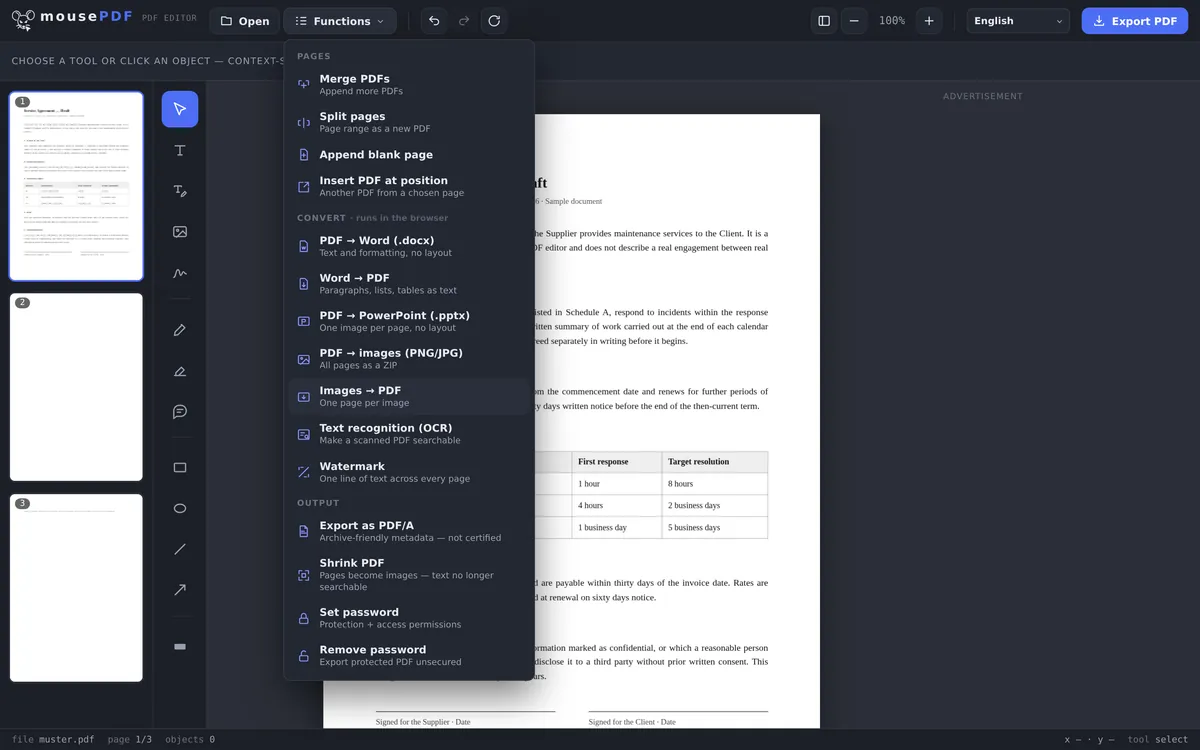
Three simple steps
Choose images
Start the image-to-PDF conversion from the “Convert” menu and pick one or more images.
Check the order
Each image becomes one page. You can reorder pages afterwards in the editor by dragging.
Export the PDF
Download the finished PDF directly, with no watermark.
Bundling scanned documents
If you want to combine several photos or scans — receipts, invoices, or form pages — into a single PDF, you don't need a separate scanning app. Each selected image automatically becomes its own page in the PDF.
Once converted, you can keep working on the resulting PDF directly in the mousePDF editor: reorder pages, merge it with other PDFs, or sign it.
How big the pages get
Every image becomes its own page, and the page takes exactly the image's dimensions. A photo of 3000 × 2000 pixels therefore produces a page 3000 × 2000 points in size, roughly 106 × 71 centimetres, poster size in this case.
Nothing is fitted to A4. That is deliberate: fitting would mean inventing a page format you did not choose, and then either adding margins or cropping the image. Instead the image is left alone: no border, no distortion, no loss of quality.
In practice: for viewing on screen it makes no difference, since every viewer fits the page to the window. If you want to print the PDF, choose “fit to page size” in the print dialog, otherwise the printer will try to produce a poster.
If you need fixed A4 pages, the more reliable route is to resize the images to A4 dimensions beforehand. Scaling them down that way also brings the file size down noticeably.
Your images go in untouched
JPG and PNG are embedded unchanged. The image data goes into the PDF exactly as it is. Nothing is re-compressed and nothing re-optimised. The quality is preserved, and the PDF ends up roughly the size of your images added together.
The order is the order you select them in. When a particular sequence matters, it helps to number the files first (01-…, 02-…), since the file dialog follows that too.
There is no text in the PDF. A photo of a letter stays a photo: it cannot be searched. If you need searchable text out of the images, PDF text recognition (OCR) is the next step.
Frequently asked questions
Which image formats are supported? +
JPG and PNG.
Can I convert several images at once? +
Yes, every selected image becomes its own page in the same PDF document.
Can I still change the order of images/pages afterwards? +
Yes, after conversion you can reorder pages in the editor as usual, by dragging.
Can I control the order of the images in the PDF? +
Yes. The images appear as pages in the order you load them, and you can drag and drop to rearrange them in the editor before exporting.
Why is my PDF page enormous? +
Because the page adopts your image's dimensions. A photo 3000 pixels wide gives a page about 106 cm wide. On screen you won't notice; for printing, pick “fit to page size”, or resize the images to A4 beforehand.
Do my images lose quality in the conversion? +
No. JPG and PNG files are embedded unchanged, with no re-compression. That is why the PDF's size roughly matches the sum of your image files.
In what order do the images end up in the PDF? +
In the order you select them. If it has to be exact, number the filenames first.
You might also find this useful
Convert PDF to Word
Export PDF text as an editable Word file.
Convert Word to PDF
Export a Word document as a PDF.
Convert PDF to images
Export every page as a PNG image.
Convert PDF to PowerPoint
Turn every PDF page into an image slide in a PowerPoint file.
Merge PDF
Combine multiple PDFs into one file.
Compress PDF
A PDF made from photos grows large quickly. This is how you shrink it again.