 mousePDF
Convert PDF to PowerPoint without uploading
Turn a PDF into a PowerPoint file (.pptx), where each page becomes an image slide. Handy for quickly reusing a PDF inside a presentation. Runs entirely in your browser.
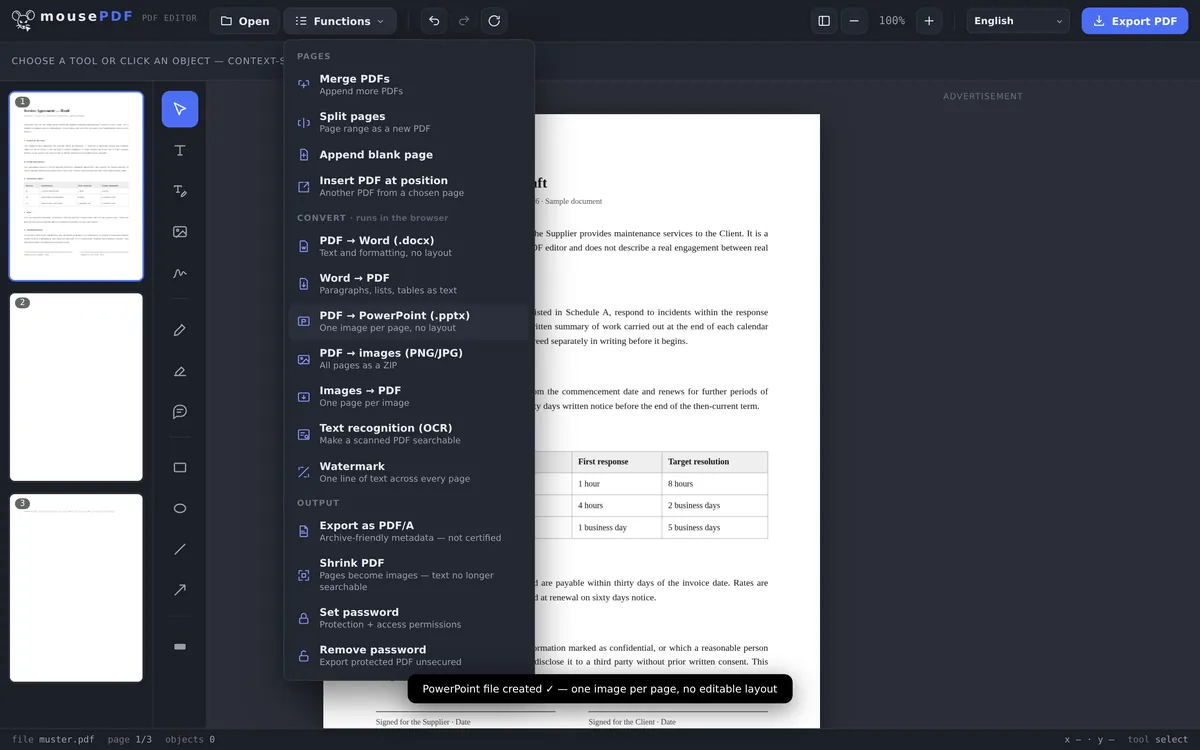
Three simple steps
Open a PDF
Open a PDF by dragging it into the browser.
Convert to PowerPoint
Choose “PDF to PowerPoint” from the export menu.
Download
Save the finished .pptx file. No upload, no account.
Reusing a PDF inside a presentation
If you need an existing PDF — a slide template or a handout — as a starting point for a presentation, mousePDF can convert it directly into a .pptx file. Each PDF page becomes an image slide that you can then reorder, add to, or present in PowerPoint.
Every page becomes an image slide
The result is a genuine .pptx file that opens in PowerPoint, LibreOffice Impress and Google Slides. Each PDF page becomes one slide holding one image.
The text is not editable afterwards. There are no text boxes, no bullet lists, no movable elements. A slide shows a picture of your page, and that is all. If you expect to rewrite sentences in PowerPoint, this is the wrong route.
That is a deliberate decision. Turning a PDF page back into editable text boxes is unreliable across the whole industry: what comes out looks usable at first glance and is, in detail, shifted, wrongly grouped and full of broken paragraphs. Fixing up a result that is almost right takes longer than rebuilding the slides.
Where it earns its keep
It is good for: dropping a PDF into an existing deck, walking through a document page by page in a meeting, attaching an appendix to a slide set, or annotating something by laying arrows and notes over it in PowerPoint.
A slide deck has only one format, unlike a PDF, where every page may be a different size. The format is therefore derived from the first page. Pages with a different aspect ratio are fitted proportionally, so they gain margins rather than being stretched. With mixed documents it pays to start with the page whose format should set the tone.
And a limit we will not hide: the generated file is checked for completeness and well-formedness, but no copy of PowerPoint is available to verify every build against. If a file fails to open for you, that is a bug we want to hear about. The contact page is there for exactly that.
Frequently asked questions
Is my PDF file uploaded for the conversion? +
No. The conversion runs entirely in the browser.
Can I edit the text in the PowerPoint file afterwards? +
Not directly. Each page is embedded as an image on a slide, so there's no editable text layout. For editable text, PDF-to-Word conversion is the better fit.
How many slides does it create? +
Exactly one slide per PDF page, in the original order.
Is this free? +
Yes, no account and no watermark.
Can I edit the text in PowerPoint afterwards? +
No. Each slide contains an image of the PDF page, not text boxes. Reliable conversion back into editable text does not exist for PDF, which is why we do not promise it.
What happens with pages of differing sizes? +
A slide deck knows only one format, and it is derived from the first page. Differing pages are fitted proportionally and gain margins rather than being stretched.
Will the file open in LibreOffice or Google Slides? +
It is built as a regular .pptx and should open there. If a file gives you trouble, do let us know. We want to hear about it.
You might also find this useful
Convert PDF to Word
Export PDF text as an editable Word file.
Convert Word to PDF
Export a Word document as a PDF.
Convert PDF to images
Export every page as a PNG image.
Convert images to PDF
Turn JPG or PNG images into a PDF document.