 mousePDF
PDF text recognition (OCR) without uploading
Add an invisible, searchable text layer over scanned or image-based PDF pages. Recognition runs entirely in your browser, and your file is never uploaded.
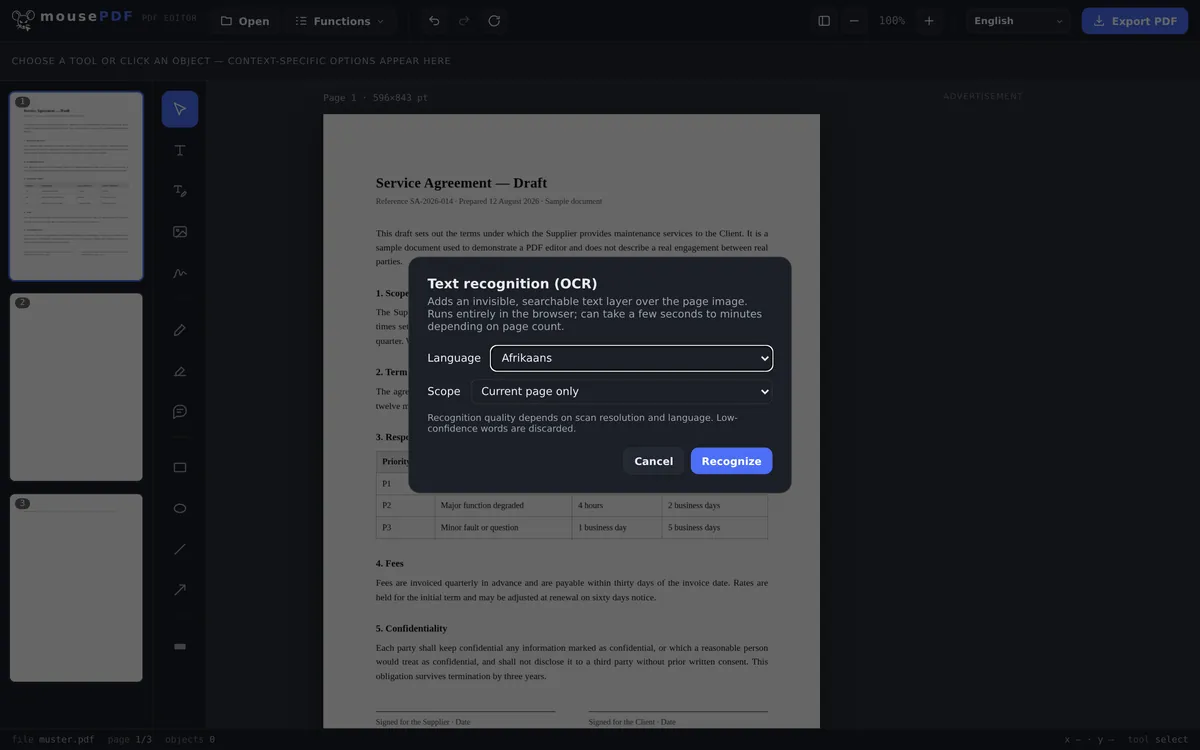
Three simple steps
Open a PDF
Drag a scanned or image-based PDF into the window, or pick one from your files.
Choose language & scope
Set the recognition language and decide whether to run it on just the current page or the whole document.
Export
Save the PDF with a searchable, invisible text layer. The page image itself stays visually unchanged.
Making scanned documents searchable
Scanned contracts, invoices, or books often contain only a page image, no real text, so you can't search or copy text in them. mousePDF recognizes the text locally in your browser and places it invisibly over the image, so search and copying work without changing how the page looks.
Why recognition on your own device is unusual
OCR is one of those tasks that almost inevitably involves uploading something: recognition needs a language model, and that model usually lives on a server. Here it runs in your browser; only the model is downloaded, never your file.
That matters precisely for the documents people scan: contracts, payslips, letters from the doctor, copies of ID. A scan is an image, and before it becomes searchable, something has to read it. That this something runs on your own device, in your own browser, is the real difference.
28 languages are available for OCR. The model for the language you pick is only fetched when you actually run it. That keeps the page light, and you download only what you need.
Where recognition reaches its limits
Non-Latin scripts are deliberately absent. No Cyrillic, no Chinese, Japanese or Korean, no Arabic, Hebrew, Devanagari or Thai. The models are considerably larger and the hit rate noticeably lower, and a result you have to correct character by character helps nobody. Greek is included, because in this respect it does not fall into the same class.
Recognition is never flawless. It reads back out of pixels what was once text. A clean, straight scan gives very good results; a crooked phone photo in poor light, spidery handwriting or an unusual display face give distinctly worse ones. Anyone reusing the text should proofread it, and that goes for any OCR-processed version, not just this one.
The page's appearance does not change. The recognised text is laid over the image as an invisible layer: you still see your scan, but you can search and select within it. Recognition errors are therefore invisible in the picture. They surface only when you copy text out.
OCR is also useful after compressing a PDF: compression turns pages into images and strips their text layer, and recognition puts a fresh one back.
Frequently asked questions
Is my document uploaded for text recognition? +
No. Recognition runs entirely in the browser via a locally loaded OCR engine, and the file never leaves your device.
Which languages are supported? +
A range of European languages with Latin or Greek script. Scripts such as Chinese, Arabic, Cyrillic or Devanagari are not currently supported for OCR.
How long does recognition take? +
Depending on page count and device performance, anywhere from a few seconds to a few minutes.
Does text recognition change how the page looks? +
No. The page image stays exactly the same; the recognized text layer sits invisibly on top and only enables search and copying.
Which languages are recognised? +
28: all the Latin-script ones plus Greek. Non-Latin scripts such as Cyrillic, Chinese, Arabic, Hebrew or Thai are deliberately excluded, because the hit rate there would be markedly worse.
How accurate is the recognition? +
Very good on a clean, squarely aligned scan; noticeably worse with skewed phone photos, poor lighting or handwriting. If you reuse the text, proofread it.
Does my document look different after text recognition? +
No. The recognised text goes on as an invisible layer over the image, so the page looks exactly as before but is searchable.
You might also find this useful
Compress PDF
Shrink image-heavy PDFs without uploading them.
Convert PDF to PDF/A
Convert to the archive-friendly PDF/A format for long-term storage.
Convert PDF to Word
Export PDF text as an editable Word file.
Edit PDF text
Click on existing text in a PDF and replace it.