 mousePDF
Convert PDF to images: JPG or PNG, without uploading
Export every page of a PDF as a JPG or PNG image, all pages bundled into a ZIP download. Runs entirely in your browser.
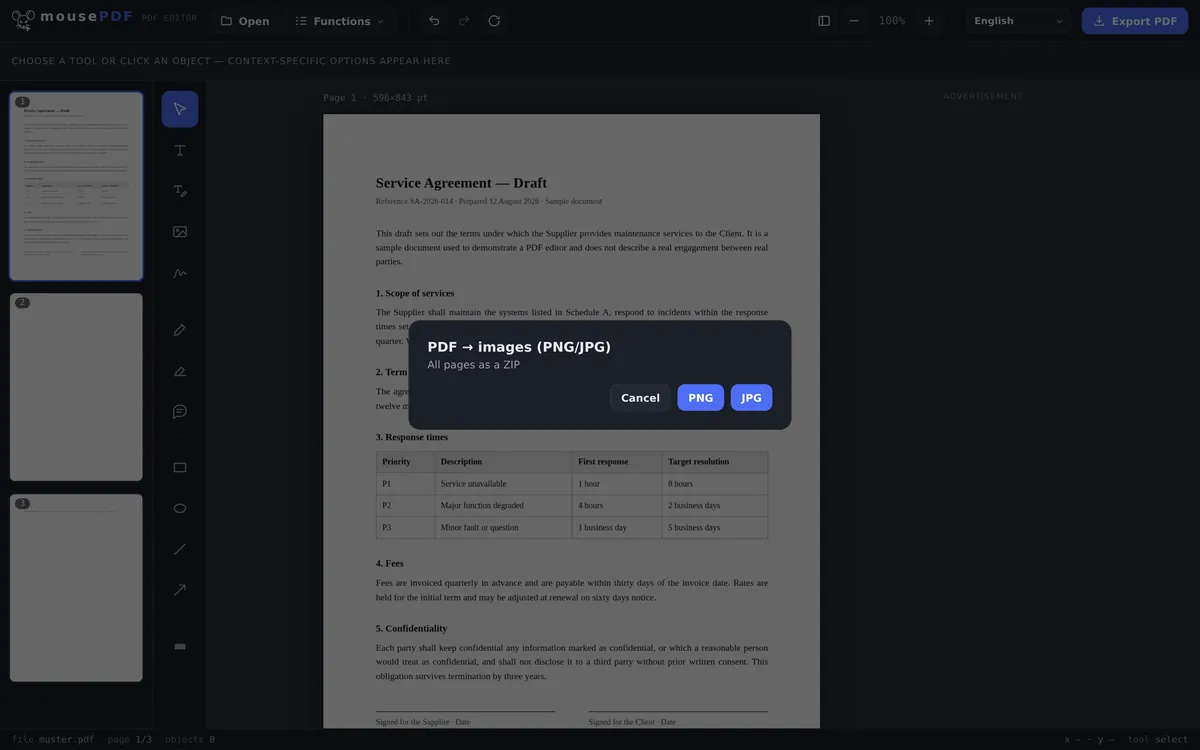
Three simple steps
Open a PDF
Open a PDF by dragging it into the browser.
Choose “PDF to images”
Start the image conversion from the “Convert” menu and pick JPG or PNG.
Download the ZIP
All pages as JPG or PNG images, bundled into a single ZIP file.
What it's useful for
PDF pages as images come in handy for embedding a single page in a presentation, a website, or on social media where no PDF viewer is available, or simply to use a page as a thumbnail.
Format and resolution, concretely
Each page becomes a JPG or PNG, rendered at twice the PDF page size. Since a PDF works internally at 72 points per inch, that comes to 144 dpi, so an A4 page ends up around 1190 × 1684 pixels.
Which one to pick is not a matter of taste: PNG is lossless and therefore right for text and lines. JPG produces its characteristic smearing along hard edges, exactly where letters meet a white background. JPG is considerably smaller and the better choice for photos, or whenever file size matters.
All pages come back as a ZIP file, the images inside numbered consecutively, for a 12-page document from page-01.jpg to page-12.jpg, so the order holds alphabetically too.
The limits of going via images
Text becomes pixels. An image does not know which letters it shows: nothing can be selected, copied, searched, or picked up by a screen reader any more. That is not a weakness of the conversion but the difference between a document and a photograph of one.
144 dpi is meant for screens, not for print. On a monitor, in a slide deck or in an article this looks clean. Print work is normally calculated at 300 dpi. For that, going via images is the wrong route; there you send the PDF itself.
If what you actually want is a smaller file, compress a PDF is the better path: the result stays a PDF and keeps behaving like a document.
Frequently asked questions
What format are the images exported in? +
Either JPG or PNG, one file per page. PNG is lossless, JPG is smaller.
How do I get several pages as images at once? +
All pages are offered together in a single ZIP download, so you don't need to download them one by one.
Does this work with PDFs that have a lot of pages? +
Yes, conversion runs page by page with a progress bar, so even large documents are processed without memory issues.
What resolution are the images exported at? +
Pages are rendered at twice the PDF page size, which comes to 144 dpi. That's enough for most use cases: further processing, presentation, or archiving.
What format and resolution do I get? +
JPG or PNG at 144 dpi, that is twice the PDF page size. An A4 page comes to roughly 1190 × 1684 pixels. All pages come back together as a ZIP file.
Can I get just a single page as an image? +
Yes. Pull that page out first with split a PDF, then convert the extract. The ZIP will then contain only that one image.
Is the text in the images still searchable? +
No. An image contains pixels, not letters. If you need searchable text, stay with the PDF.
You might also find this useful
Convert PDF to Word
Export PDF text as an editable Word file.
Convert Word to PDF
Export a Word document as a PDF.
Convert images to PDF
Turn JPG or PNG images into a PDF document.
Convert PDF to PowerPoint
Turn every PDF page into an image slide in a PowerPoint file.
Compress PDF
Shrink image-heavy PDFs without uploading them.
Split a PDF
Pull out just a page range as its own PDF.