 mousePDF
Set or remove a PDF password without uploading
Protect a PDF with a password and set permissions, or remove the password from a protected PDF. Both run locally in your browser.
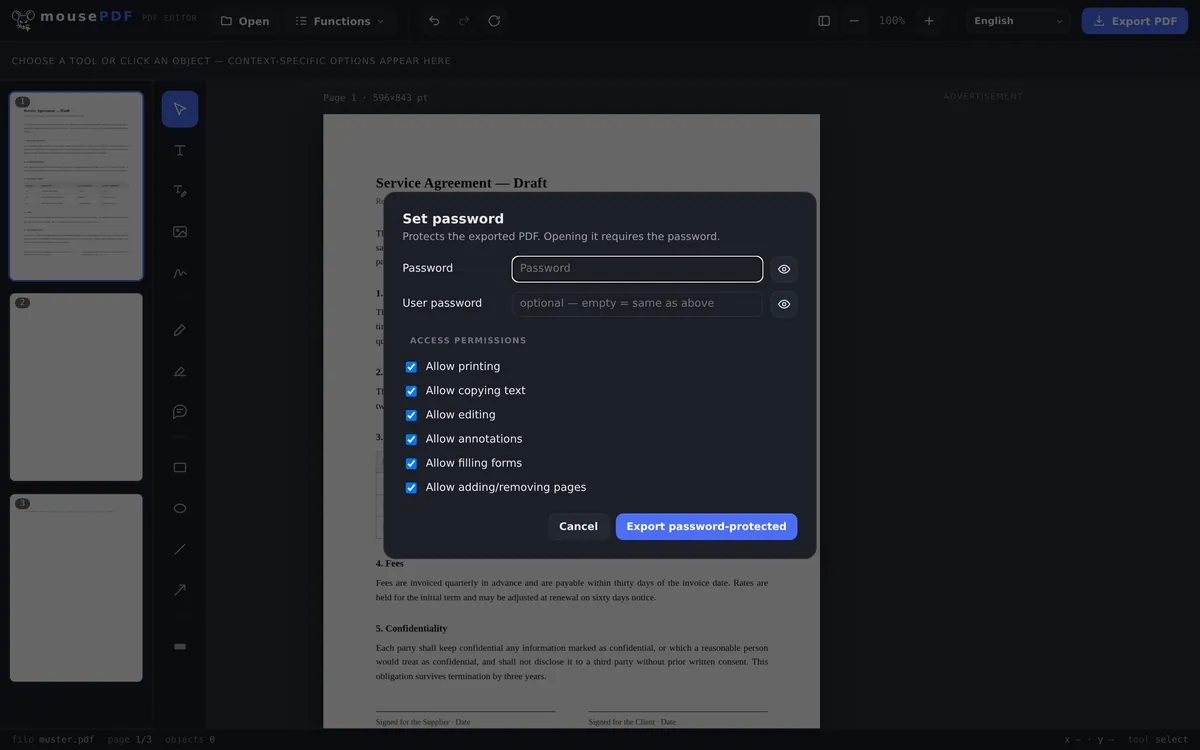
Three simple steps
Set a password
Choose “Set password”, enter a password, and decide which permissions to allow (printing, copying, editing, annotations, forms, inserting/removing pages).
Remove a password
Alternatively, choose “Remove password”, enter the current password, and export unprotected.
Export
Save the result as a new PDF file.
Fine-grained permissions, not all-or-nothing
When protecting a PDF, you can decide individually what's allowed: printing, copying text, editing, annotating, filling forms, and inserting or removing pages. That means you can share a PDF that can be read and printed but not edited, for example.
To remove a password, you need to know the current one. mousePDF doesn't bypass protection on a PDF whose password you don't have. That's a deliberate design choice, not a missing feature.
Encryption: AES-256 in PDF 2.0
mousePDF encrypts protected documents with AES-256 (AESV3, revision 6) in the PDF 2.0 format. That is the strongest level the PDF standard defines. The password and encryption keys are created entirely in the browser; no server ever sees or stores them. A PDF protected this way can only be displayed by PDF tools that support the PDF 2.0 standard. Since that standard has been around since 2020, any modern PDF tool will normally handle it without trouble.
What exactly this protection is
The exported PDF is encrypted with AES-256. That is the strongest level the PDF standard defines; without the password, nobody can read the content.
You set one password, and it covers both roles the PDF format knows: opening the file and the permissions. Until 31 Aug 2026 there were two fields here. The format does distinguish them, but the distinction helps nobody who simply wants to protect a file, and using it wrongly gave away the protection on opening.
A password is also only as good as its length. AES-256 is effectively unbreakable, but the security of the file stands or falls with the length and complexity of the password you choose.
Where this protection ends
Alongside the password you can set permissions: printing, copying, editing, annotating, filling in forms. And here one has to be honest: these permissions are a request, not a lock.
They are recorded in the document, but enforcing them is up to the program that opens it. A viewer that honours them will refuse to copy, while another simply ignores them. That is a property of the PDF format, not a weakness of this implementation; no vendor anywhere can change it. Anyone promising to “prevent copying” is promising more than the format delivers.
The user password, by contrast, is real encryption: without it there is no content for a program to ignore. If you genuinely need to keep people out, that is the instrument of choice, not the permissions.
Conversely, removing a password exports the PDF unencrypted. After that anyone can open it. That is the point of the function, but it is worth a moment's thought before the file goes into a shared folder. Note as well that a password can only be removed if you already know it. mousePDF cannot crack PDF passwords.
Frequently asked questions
Can I remove a password I don't know? +
No. mousePDF only removes protection from a PDF whose password you enter. It is not a tool for bypassing a password.
Which permissions can I set when protecting a file? +
Printing, copying text, editing, annotating, filling forms, and inserting/removing pages: each one can be allowed or blocked individually. Bear in mind that these are a voluntary instruction rather than real protection: not every PDF tool honours them.
Is the password transmitted anywhere? +
No, all encryption and decryption happens in the browser; the password never leaves your device.
Does password protection slow down opening the PDF? +
No. The encryption uses AES-256 (AESV3, revision 6) in the PDF 2.0 format, and files open instantly. A PDF protected this way needs a viewer that supports PDF 2.0; since that standard has been around since 2020, any modern PDF tool will normally handle it. On old devices or very large files you might notice a brief delay, but on typical documents it's seamless.
Which encryption is used? +
AES-256 (AESV3, revision 6), PDF 2.0. The PDF standard does not define anything stronger; in practice the weak point is the password you choose, its length and complexity, not the algorithm.
Can I really stop people copying the text? +
No, and no PDF tool can. The copy restriction is a note that viewer programs may honour but do not have to. Real protection comes only from a password required to open the file, and the encryption that goes with it.
What happens if I forget my password? +
Then you cannot get into the file, and neither can we. There is no back door and no recovery; the document would be effectively lost. Keep the password the way you would keep a key.
You might also find this useful
Redact PDF
Permanently cover sensitive details in a PDF.
Sign PDF
Draw a signature, type it or use a photo of it, then place it freely.
Add watermark
Place text across every page of your PDF.
Convert PDF to PDF/A
Convert to the archive-friendly PDF/A format for long-term storage.