 mousePDF
Redact a PDF without uploading, cover confidential content
Permanently cover sensitive details in a PDF (account numbers, names, whole paragraphs) before you share the document. Runs locally, and the original file is never uploaded.
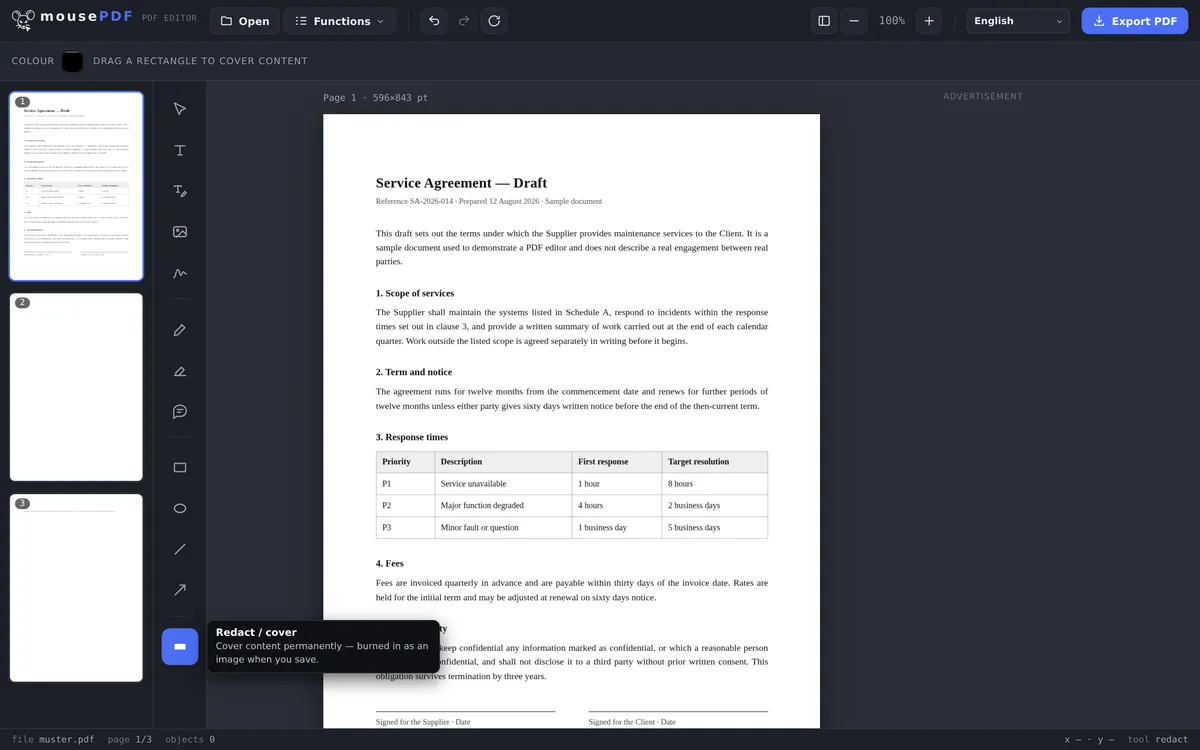
Three simple steps
Open a PDF
Drag your PDF into the browser window.
Choose “Redact / cover”
Drag over the areas you want to protect.
Export securely
Covered content is flattened into an image when you save, and is no longer extractable.
Why a black box on its own isn't enough
A black box over text isn't enough on its own: in many PDFs, the text underneath can still be selected and copied if the cover is just a graphic on top. mousePDF therefore rebuilds the page as an image when you save, which makes the content underneath genuinely disappear.
Because the PDF is never uploaded in the first place, mousePDF is especially well-suited for documents that nobody else should see: contracts, ID copies, bank statements.
For extra protection, you can also add a password afterwards, so that only people with the password can open the file.
Redacting means removing, not covering up
This is the most important paragraph on the page, which is why it comes first. A black rectangle over a word is not a redaction: in many PDF tools the original text is still underneath, and anyone can retrieve it with “select all and copy”. That is exactly how government departments and law firms have ended up in the news: the file was redacted, and the text was still in it.
In mousePDF every page carrying a redaction is rebuilt as an image on export. The text underneath no longer exists afterwards. It is not covered up, it is genuinely gone. Nobody can bring redacted text back later.
And there is no setting for you to get wrong. There is no switch, no checkbox and no default that could undo it. A safety feature that depends on a setting somewhere else is not one, so there isn't a setting here.
What it costs, and how to check it yourself
Burned-in pages are images. Text on them is no longer searchable or selectable, including text you never meant to redact. That is the price of the redacted passage genuinely disappearing, and it is worth paying.
Only the pages that actually carry a redaction are affected. A 40-page contract with two redacted passages therefore loses searchability on two pages, not on forty. And you can always put the remaining text back into the PDF afterwards with OCR.
Check it yourself anyway before you pass the file on. Open the exported PDF and try to select and copy the redacted area. If nothing comes out, nothing is there. It takes ten seconds, and it is a test you should run on every PDF editor from every vendor, ourselves included. Trust is good, checking is better.
One closing distinction: a highlighter emphasises, it does not cover. Highlighting a PDF is for annotations, not for concealment. And if you simply want to correct a passage that is not secret, edit PDF text is the right tool.
Frequently asked questions
Is a black box really enough to redact something? +
Yes. The page is rebuilt as an image when you save, and the text underneath disappears entirely. That holds unconditionally, and there is no setting that changes it.
Is my file uploaded anywhere for this? +
No, like every other feature, redacting runs entirely in your browser.
Can I redact several areas on one page? +
Yes, as many areas as you like, on a single page or spread across the whole document.
Can I undo a redaction after exporting? +
No. Once you have exported, the covered areas are permanently gone and cannot be recovered from that file. If you think you might need the original again, keep a separate copy before redacting.
Is redacted text really gone, or just covered up? +
Really gone. The page is rebuilt as an image on export, and the text underneath disappears with it.
Is there a setting I need to watch? +
No, deliberately so. A redaction is always burned in; there is no setting for it, precisely so that nobody can publish confidential information by accident through a switch in the wrong position.
How can I tell it worked? +
Open the exported file and try to select and copy the redacted area. If nothing comes out, nothing is there. That check is worth running on any sensitive document, whatever program produced it.
Can I undo a redaction later? +
Not in the exported file, and that is the whole point. Inside the editor you can move or delete it freely before exporting, and your source file stays unchanged regardless.
You might also find this useful
Set/remove PDF password
Protect a PDF with a password and set permissions.
Edit PDF text
Click on existing text in a PDF and replace it.
Highlight & comment
Highlight text and attach real PDF annotations.