 mousePDF
Sign a PDF without an account, without uploading
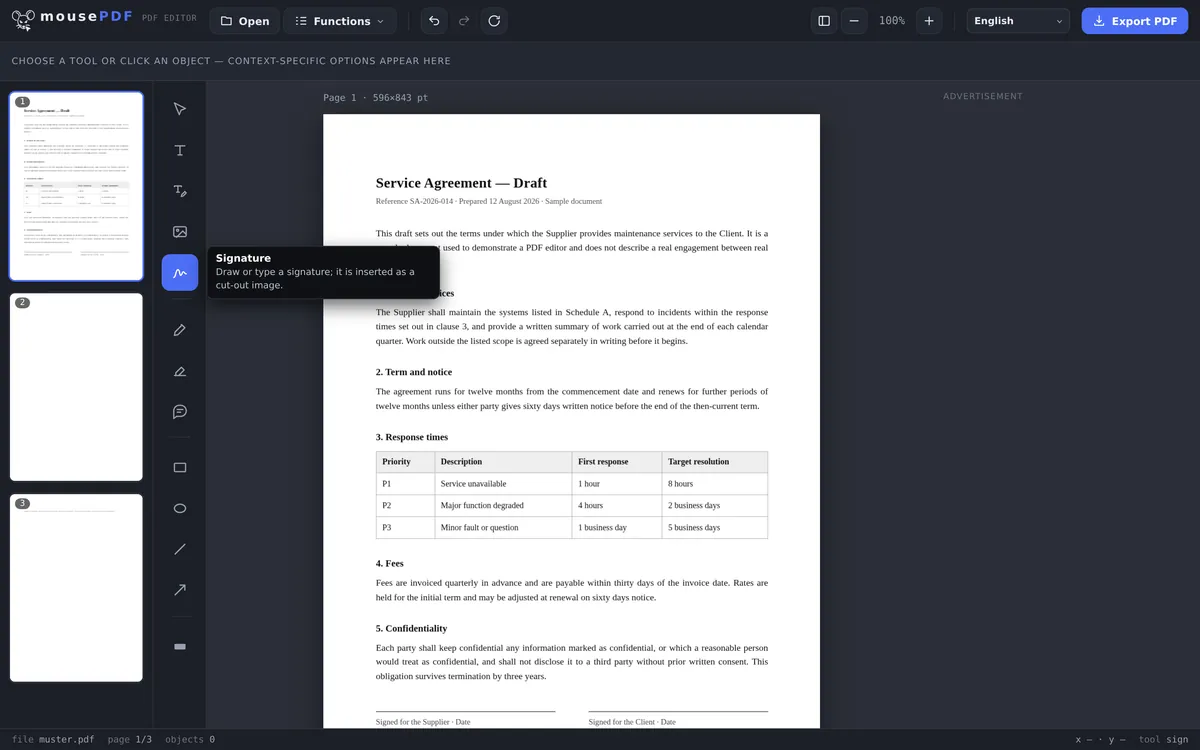
Draw your signature with your mouse or finger, type it as text, or use a photo of it, and the white paper is removed automatically. Place it anywhere in the document.
Three simple steps
Open a PDF
Load the document you want to sign.
Create a signature
Draw your signature, type it (three styles) or use a photo of your own signature.
Place it & export
Drag the signature to the right spot, then save the signed PDF.
Draw it, type it, photograph it
Your signature can be drawn freely with a mouse, finger, or stylus, or entered as text if you'd rather not draw. Typed signatures come in three styles: handwriting, serif, or sans-serif. If you already have your signature as a photo or a scan, drop it straight in under “Image”: PNG, JPG or WebP up to 10 MB. The white paper is removed automatically, so the signature doesn't cover up whatever sits beneath it in the document. That picture stays on your device too, and nothing is uploaded.
If your document is a form without real input fields, you can first place the text with the form filling feature, then sign it.
The signature is embedded into the page as a transparent image and can be placed as many times as you need at different spots, which helps with multi-page contracts that have several signature fields.
When to sign digitally?
Rental agreement without a printer. Your new lease arrives as a PDF and you don't have a printer handy. Just draw your signature in the browser and drop it on the last page.
Filling out and signing forms. Government forms and applications often need a signature at the end. With mousePDF you type in the fields and place your signature below, all in one go.
Multi-page contracts. Some contracts require initials on several pages. Create your signature once and place it wherever it's needed throughout the document.
Where an image signature counts, and where it does not
Your signature is placed on the page as an image. It looks like a signature on paper and serves the same purpose: it shows that you signed the document.
It is not a cryptographic signature. The document gets no certificate, and no PDF viewer will show a green tick reading “signature valid”. Anyone who needs a qualified electronic signature, required for certain contracts and for dealings with public authorities, needs a trust service provider that verifies identity. mousePDF cannot do that, and we will not pretend otherwise.
Why not? A qualified signature requires that someone has verified your identity and holds a private key on your behalf. That is precisely a service with a server and an account, the opposite of what mousePDF is built for. For the far larger part of everyday life, an image signature is enough: delivery notes, registrations, consent forms, internal approvals.
What an image signature cannot do
An image sitting on a PDF page can be extracted again with the right tools, and in theory placed under a different document. There is nothing mousePDF can do about that, and no other PDF tool either: using a signature as an image means accepting that risk. The same is true of a scanned paper signature, which any photocopier reproduces.
If that risk is too great, only a different kind of signature helps. A qualified electronic signature binds the document cryptographically to a verified identity. It cannot be lifted off, because it is not a picture. That requires a trust service provider, as described above.
What helps in everyday practice: do not leave the signed PDF lying around openly. To stop unauthorised people opening it at all, you can set a PDF password.
Frequently asked questions
Is a signature created this way legally equivalent to a real digital signature? +
No. mousePDF inserts a visual image of your signature; this isn't a qualified electronic signature under eIDAS. It's typically sufficient for informal agreement, internal approvals, or quickly signing a scanned form.
Can I sign in several places in the document? +
Yes, the same or a new signature can be placed as many times as you like, including on different pages.
Is my signature stored anywhere? +
No, it only exists in your browser's memory for as long as the page stays open.
Can I save my signature for later use? +
Not across sessions. The signature exists only in your browser's memory while the page is open. Once you close or reload the page, it's gone. That's intentional: we don't store your signature anywhere.
Is my signature legally binding? +
For many everyday cases a simple electronic signature is enough, and that is what this is. Where a qualified electronic signature is required it will not do, since that needs a trust service provider who verifies your identity. If in doubt, ask the other side which form is required and accepted.
Is my signature stored anywhere? +
No. It is created in your browser and stays there. There is no upload, no account and nothing filed on a server. Your personal signature is one of the last things you should hand over to someone else's service.
Can I place the same signature on several pages? +
Yes. Once drawn, it can be placed, moved and resized as often as you like before you export.
You might also find this useful
Edit PDF text
Click on existing text in a PDF and replace it.
Highlight & comment
Highlight text and attach real PDF annotations.
Fill PDF form
Fill in form fields on screen and save the result as a PDF.
Add watermark
Place text across every page of your PDF.
Set/remove PDF password
Protect a PDF with a password and set permissions.
Convert Word to PDF
Convert the Word template to PDF before signing.