 mousePDF
Merge PDF files for free, without uploading
Combine multiple PDFs into a single file or insert one document at a specific page. Everything runs locally in your browser. No file ever leaves your device.
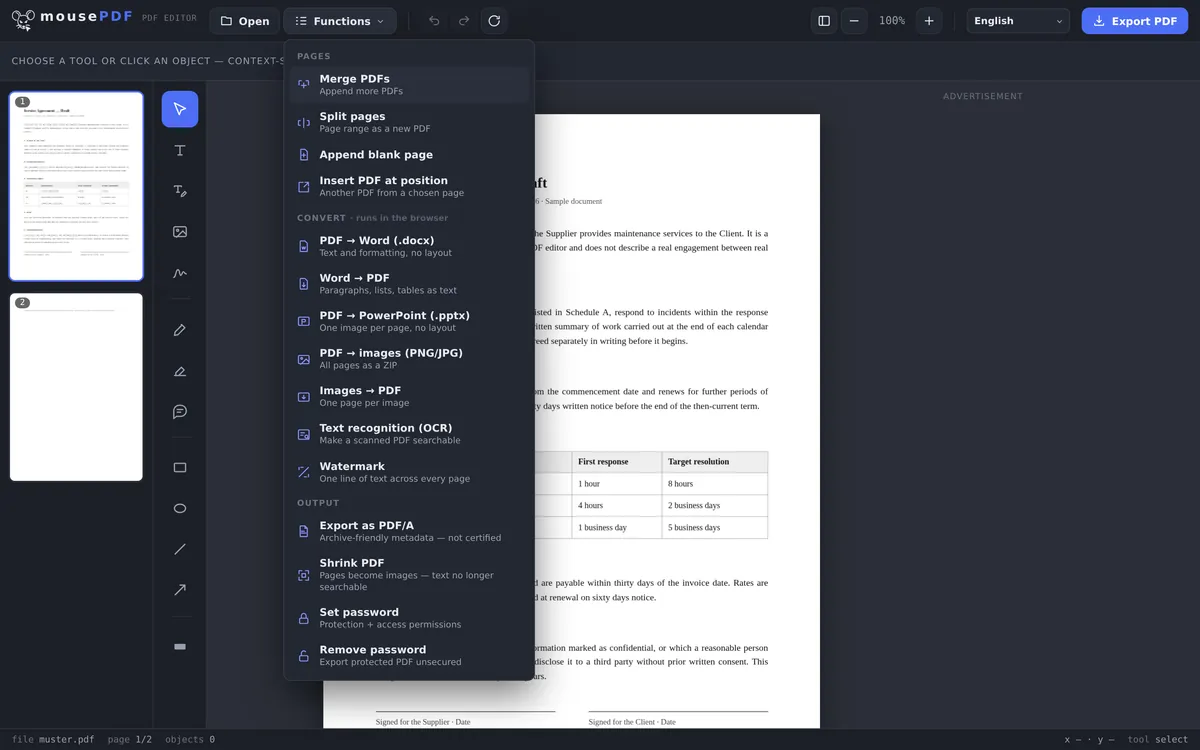
Three simple steps
Open a PDF
Drag and drop your first file, or select it from your device.
Add more PDFs
Choose “Merge PDFs” from the menu and attach as many files as you like, or insert one at a specific page.
Export
Save the merged PDF, with no watermark.
No limit on number or size
Other free PDF tools cap how many files you can merge, or require an account. mousePDF has no such cap. Nothing is uploaded to a server, so there is no server that would have to limit anything.
There is a limit, it just sits somewhere else: your device's memory. Every open file is held entirely in the browser's memory so the page preview responds without delay. How far that carries depends less on the number of files than on what is in them. A hundred pages of text weigh far less than ten high-resolution scans. When it gets tight, you notice it in sluggish thumbnails. On a PC that is rarely an issue; on an older smartphone it can happen. If you run into trouble, simply try a different device.
Append, or insert at a specific page
Appending is the normal case: under “Functions › Merge PDFs” you pick as many further files as you like, and their pages land at the end of the current document, in the order you selected them.
Sometimes a document belongs in the middle, though: a certificate handed in late, sitting between your CV and the appendix. That is what “Insert PDF at position” is for. You choose the file and say whether its pages go at the beginning or follow a particular page. It saves you the reshuffling afterwards.
And if the order still is not right, drag the page thumbnails along the edge into place. Individual pages can be rotated or deleted there too, before you export.
Quality, passwords and bookmarks
Page content is untouched. Fonts, images and vector graphics are carried over from the source files, not redrawn and not re-compressed. What goes in comes out at the same quality.
Password-protected PDFs can be merged as long as you know the password: you are asked for it when the file opens. The result, however, is unprotected. If the merged file should carry a password again, you can set a PDF password in the editor.
Bookmarks are lost. We would rather say so up front: if one of your files has an outline — the clickable chapter list some PDF viewers show in a sidebar — it will not be in the result. That is down to how PDFs are built: an outline belongs to the document as a whole, not to the individual pages, and merging creates a new document. For most documents that does not matter; for a 300-page manual it does.
Why local merging is safer
Many PDFs contain confidential content: contracts, invoices, job applications. Merging through an online service puts every file involved on someone else's server, however briefly. You have no control over that and can never be sure what happens to the documents once they are stored. mousePDF processes them solely in your browser's memory, locally on your device. That keeps you clear of data-protection law and company policy.
What do people merge PDFs for?
Job applications. Cover letter, CV, and certificates belong together, and nobody wants to open five separate attachments. A single merged PDF keeps your application complete and tidy.
Comparing quotes. Got three quotes from different vendors? Instead of switching between tabs, merge them all into one PDF and flip through them side by side.
Project documents. Every project accumulates a pile of files: briefings, approvals, meeting notes. Bundled into one PDF, everyone on the team has the same up-to-date reference.
Applications and supporting documents. Filing an application usually means attaching several pieces of evidence: proof of address, a bank statement, a contract. Plenty of forms and portals accept only a single attachment. One merged file solves that without you having to leave anything out.
Frequently asked questions
How many PDFs can I merge at once? +
As many as you want. mousePDF doesn't impose a technical limit. The only limit is your device's memory. On modern devices several hundred pages are no problem at all.
Does merging affect quality? +
No. Pages are carried over unchanged, with no re-compression.
Can I still reorder pages afterwards? +
Yes, in the editor you can drag and drop to reorder, rotate, or delete any page before exporting.
Is my data safe during merging? +
Yes. Since the files never leave your browser, no third party, not even us, can see their content. For sensitive documents, that makes a real difference compared to upload-based tools.
Can I merge password-protected PDFs? +
Yes, as long as you know the password. You are prompted for it when the file opens, and after that it behaves like any other file. Note that the result is unprotected, but you can set a new password in the editor.
Can I combine only certain pages from several PDFs? +
Yes. The simplest route is to append all the files first, then delete whatever you don't need from the page thumbnails. What is left is exactly the selection you want to export.
How do I merge Word files with PDFs? +
In two steps: convert the Word file to PDF first, then append it like any other file. Both happen in the same editor, with no intermediate saving and no upload.
You might also find this useful
Split PDF
Select a page range and save it as its own PDF file.
Delete PDF pages
Remove one or more pages from a PDF.
Rotate PDF
Fix sideways or upside-down pages.
Convert images to PDF
Turn JPG or PNG images into a PDF document.
Add blank page to PDF
Insert a blank page instead of the content of a second PDF.
Convert Word to PDF
Convert Word files to PDF first, then merge them.