 mousePDF
Duplicate a PDF page without uploading
Copy an existing page of your PDF, including all text, images, and annotations. The copy appears right after it, entirely in your browser.
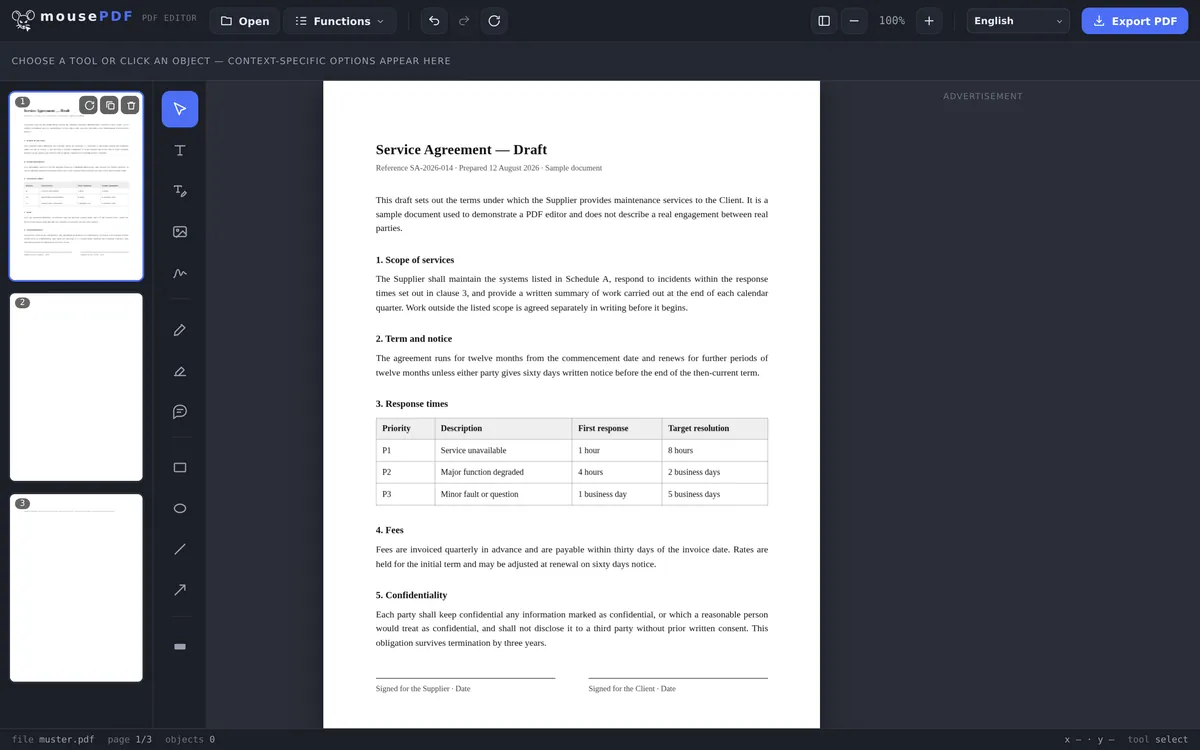
Three simple steps
Open a PDF
Drop your file here, or pick one from your device.
Pick a page
In the page sidebar, click the page you want to copy.
Duplicate
Click "Duplicate". The copy appears right after the original, with all its content.
Everything on the page comes along
The copy carries over everything on the original page: text, images, drawings, highlights, and inserted form fields. It's a full copy, not an empty template in the same format.
The duplicated page lands right after the original in the page order. If you want it somewhere else, drag it to the right spot in the sidebar afterward, just like any other page.
Why people duplicate a page
The most common reason is a template for several similar pages. With a recurring form or a table that repeats across several pages, it's faster to duplicate a finished page and just adjust the content than to build each page from scratch.
A second reason is a backup before a risky edit: duplicate the page, then experiment only on the copy. The original stays there as a fallback until you delete it yourself.
Different from adding a blank page
If you actually want a blank page with no content, Add blank page is the right tool. Duplicating, on the other hand, deliberately copies the full content of an existing page.
Frequently asked questions
Does it really copy the whole page content? +
Yes, text, images, drawings, highlights, and form fields are all copied. It's a real copy, not an empty template.
Where does the copy end up? +
Right after the original page in the page order. You can drag it to a different position afterward.
How many times can I duplicate a page? +
As many times as you like, including several times in a row if you need multiple copies of the same page.
Does the original change when I duplicate it? +
No, the original stays unchanged. An additional, independent copy is created alongside it.
Can I edit the copy without affecting the original? +
Yes, once duplicated, the original and the copy are two separate pages. Changes to one don't affect the other.
Can I undo a duplication? +
Yes, with Ctrl+Z (or Cmd+Z on Mac) right after duplicating.
You might also find this useful
Add blank page to PDF
Insert a genuinely empty new page instead of copying an existing one.
Delete PDF pages
Remove pages you no longer need, including a copy you don't want anymore.
Fill PDF form
Handy for duplicated form pages: fill in fields right on screen.