 mousePDF
Add a blank page to PDF without uploading
Insert a blank page right where you need it in your PDF: as a divider, for a handwritten note, or as a placeholder. Entirely in your browser, no upload.
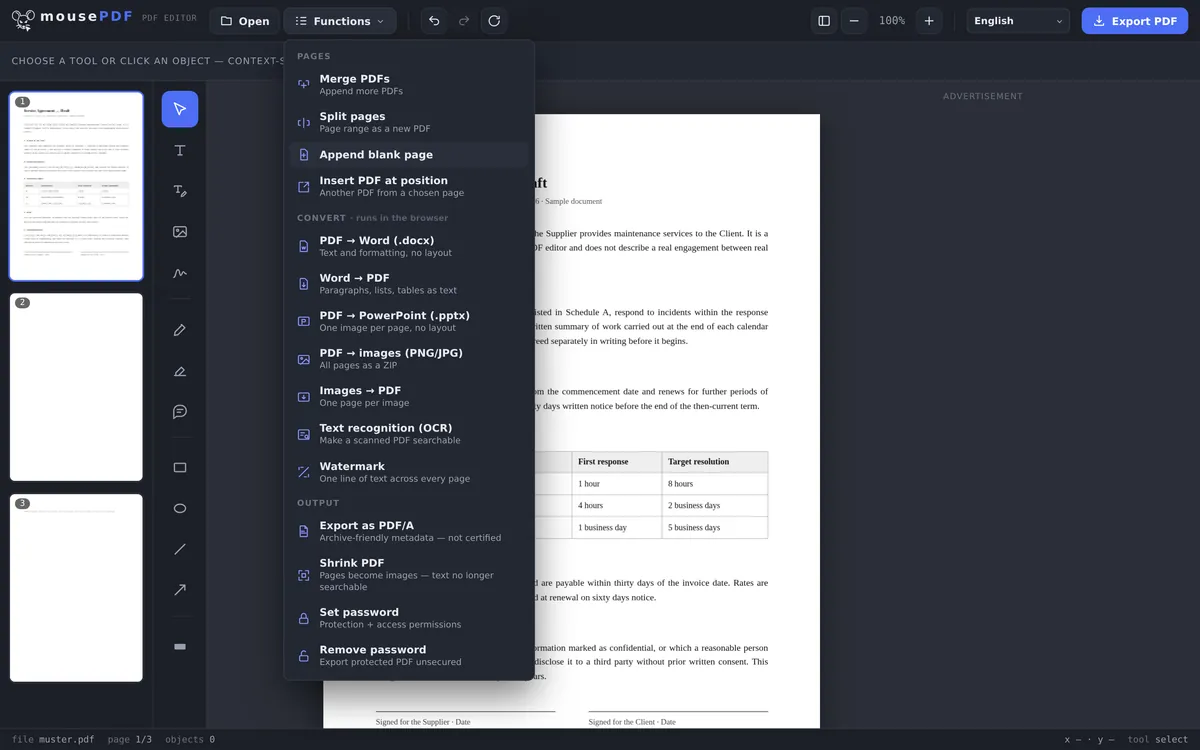
Three simple steps
Open a PDF
Drop your file here, or pick one from your device.
Pick a page
In the page sidebar, click the page after which the blank page should be inserted.
Add the blank page
Choose "Add blank page" from the function menu. The new page appears right after it, in the same format.
Where the new page ends up
The blank page is always inserted right after the page currently selected in the sidebar, not automatically at the end of the document. If you want it somewhere else, select the right page first, or drag the new page to where it belongs afterward.
The new page takes its format and orientation from the page it's inserted after: in an A4 or Letter document it comes out the same size, and in a landscape document it comes out landscape too.
The new page is fully editable
The inserted page isn't just empty space: you can write text, add images, or draw directly on it, exactly as on any other page in the editor. Typical uses are a divider page between two chapters, room for a handwritten note before printing, or an extra page for a signature at the end of a contract.
You can add as many blank pages as you like, including several in a row at the same spot, for example to make room for a multi-page form you plan to fill in by hand afterward.
Different from merging PDFs
If you want to insert the content of another PDF, merging PDF files is the right tool, since it lets you insert a second PDF at any point in the first one. "Add blank page" instead creates a genuinely empty new page, without needing a second file at all.
Frequently asked questions
Exactly where does the blank page get inserted? +
Right after the page currently selected in the sidebar. To get a different position, select the page you want it after first.
What format does the new page have? +
The same format as the page it's inserted after: width, height, and orientation are carried over.
Can I add several blank pages at once? +
Yes, you can use the function as many times as you like, including several blank pages in a row at the same spot.
Can I move the new page afterward? +
Yes, drag and drop it to any position in the document from the sidebar.
Can I add content to the blank page? +
Yes. Text, images, and drawings work on the new page exactly like on any other page in the document.
Can I undo adding the page? +
Yes, with Ctrl+Z (or Cmd+Z on Mac) right after inserting it.
You might also find this useful
Duplicate PDF page
Copy an existing page with all its content, instead of inserting an empty one.
Merge PDF files
Insert the content of another PDF at any position.
Delete PDF pages
Remove pages you no longer need.