 mousePDF
Fill out a PDF form without uploading
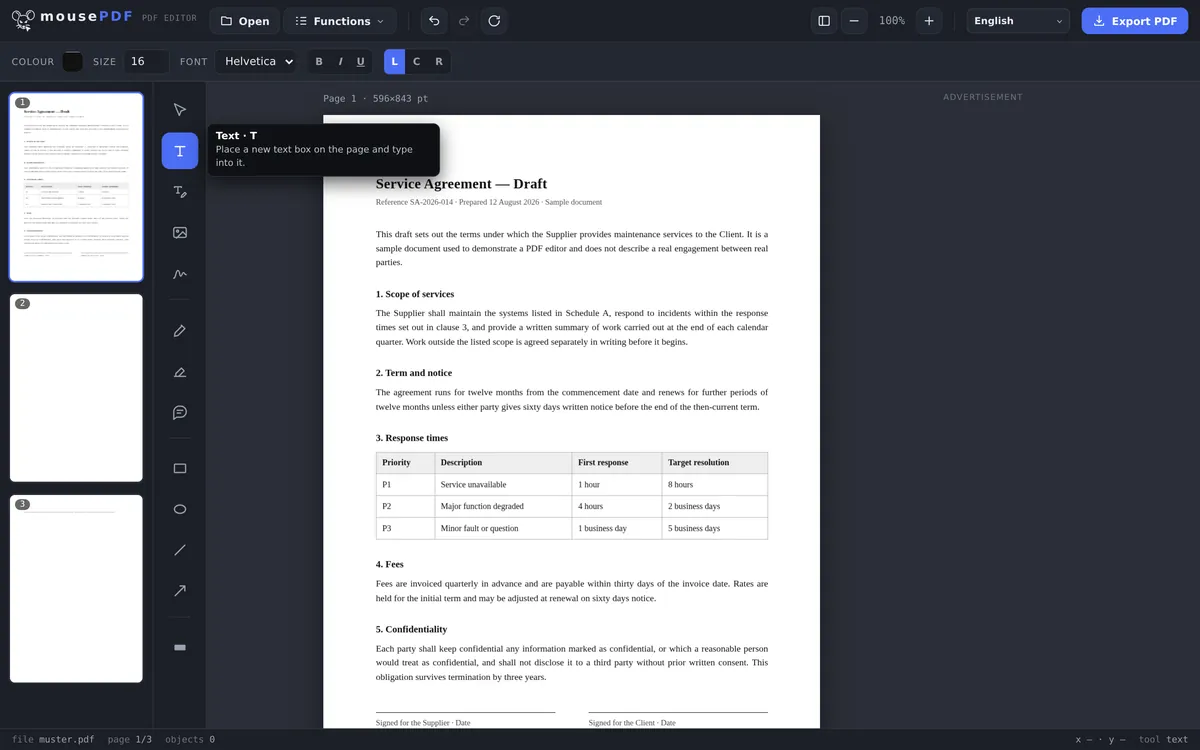
Place text anywhere on a form, even if the PDF has no fillable form fields at all, like a scanned template.
Three simple steps
Open a PDF
Drag and drop the form, or select it.
Place text
Use the text tool to click into each field and type your answer.
Export
Save the filled-out form as a PDF, and optionally sign it too.
Works even on templates without real form fields
Many forms, especially scanned or image-based templates, have no clickable form fields at all. Classic “fill PDF form” tools fail here because they rely on interactive fields. mousePDF sidesteps the problem: text can be placed anywhere on the page, regardless of whether a technical form field exists there.
Your entries are text on the page
mousePDF places your entries as text on the page rather than populating existing form fields. That sounds like a detour, but it solves exactly the problem most forms run into: a great many PDFs have no real fields at all. A scanned application form is an image, so there is nothing there to populate.
Because the text sits freely on the page, the approach works the same way on every form: real forms, scans, and PDFs that merely look like forms. You click where you need it and type. Size, colour and position can all be changed afterwards.
Tick boxes are handled with a short character: an X or a check mark in the right spot. For a signature there is a dedicated tool: sign a PDF.
What you give up in return
The result is no longer an interactive form. Whoever receives the exported file cannot click the fields and overwrite them, because your entries have become part of the page. For a form that has been filled in and sent off, that is the normal case and usually what you want.
If you need a blank template to pass on, this is the wrong route: hand over the original PDF rather than the filled-in one. Your source file stays unchanged on your disk in any case.
And the reason this runs locally at all: a form often contains precisely the details you would not want to hand to anyone: date of birth, tax number, bank details. That data never leaves your device, because there is no upload.
Frequently asked questions
Does this work with scanned forms too? +
Yes, that's exactly what it's designed for. Text can be placed freely on the page, independent of any technical form fields.
Can I sign the filled-out form right away? +
Yes, you can add a signature right afterwards in the same editor.
Is my form transmitted anywhere while filling it out? +
No, everything runs locally in the browser, without any upload.
Does mousePDF automatically detect where form fields are? +
No. You place the text yourself in the right spot. That sounds like more work, but it's actually the advantage with forms that have no real form fields, because an automatic detector would find nothing there.
Does this work with scanned forms too? +
Yes, and that is the real advantage. Because the text is placed freely on the page, it makes no difference whether the PDF has real form fields or is just an image.
Can the recipient change my entries afterwards? +
Not by clicking a field, because the entries are part of the page. So the exported file is no longer an editable form.
How do I tick check boxes? +
With a short piece of text in the right place, such as an X or a check mark. Size and position can be adjusted freely before you export.
You might also find this useful
Edit PDF text
Click on existing text in a PDF and replace it.
Highlight & comment
Highlight text and attach real PDF annotations.
Sign PDF
Draw a signature, type it or use a photo of it, then place it freely.
Add watermark
Place text across every page of your PDF.
Duplicate PDF page
Copy a filled-in form page with its content, instead of filling it in again.