 mousePDF
Delete PDF pages without uploading
Remove one or more pages from a PDF without having to rebuild the rest of the document. Runs entirely in your browser.
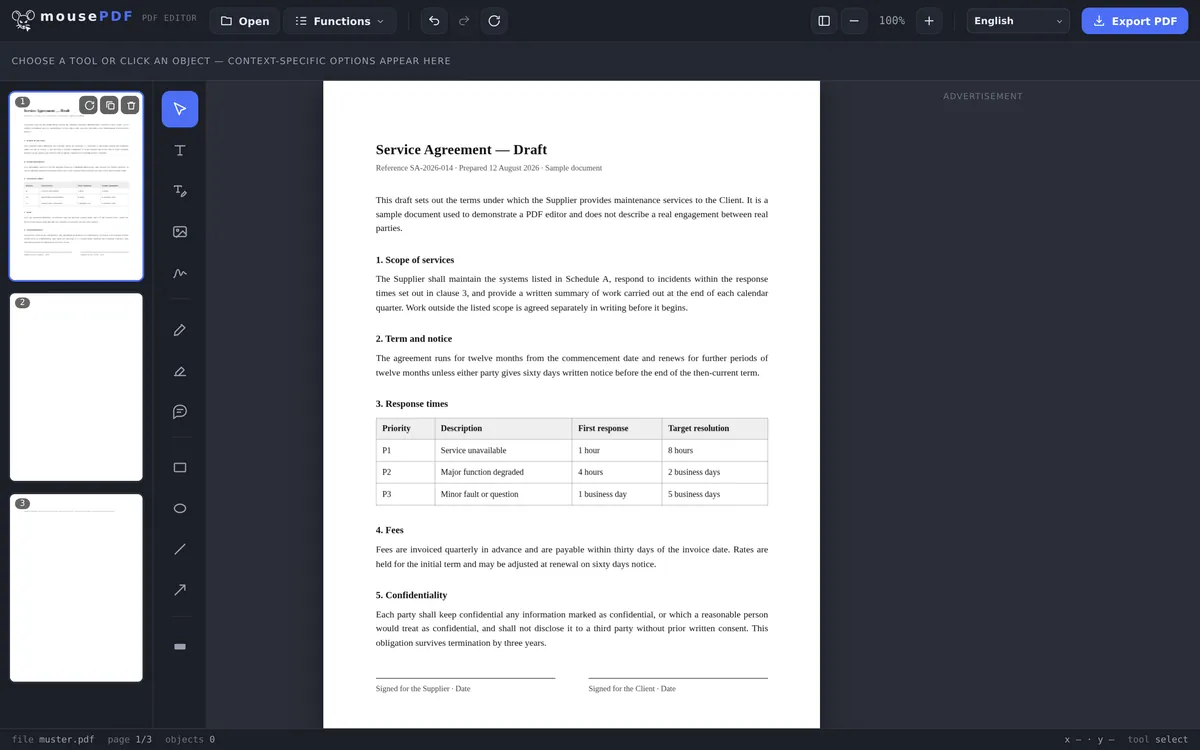
Three simple steps
Open a PDF
Drop your file here, or pick one from your device.
Select and delete page(s)
In the page overview, remove the unwanted page (or several selected pages).
Export
Save the remaining pages as a new PDF.
Faster than rebuilding from scratch
Instead of splitting a PDF and merging the pages you want back together, you can remove unwanted pages directly in the page overview, whether that is a cover sheet, a blank page or an appendix, with a click. The order of the remaining pages stays unchanged.
Removing several pages at once
For larger documents, it's often faster to delete several pages at once. Simply select the pages you want to remove in the page overview (Ctrl+click for individual selection, Shift+click for a continuous range), then remove them in one step. This is especially useful when you want to remove all blank pages from a scanned document or strip out several appendices at once.
Important: deleted pages are permanently gone after exporting. But as long as the document is still open in the editor, you can undo the last deletion with Ctrl+Z. If you're unsure which pages you really want to remove, you can split the PDF first and check the parts individually.
Deleting without putting the original at risk
Deletion only ever happens in the working copy inside your browser. Your file on disk is left untouched. Exporting creates a new file, and nothing is overwritten. So you can safely try out which pages should go.
While you are in the editor, every step can be undone. Only exporting commits the result, and even then the source still sits where it always did.
In the page thumbnails you see what you are removing as you select, and that is the difference from typing page numbers from memory. With appendices and cover sheets it is otherwise easy to miscount.
Page numbers, bookmarks and the pages that stay
The remaining pages are unchanged. They are copied out of the source, not redrawn and not re-compressed. Fonts, images and vector graphics come out exactly as they went in.
Numbering does not shuffle up. If a page number is printed inside the document it stays put: after deleting page 4, the printed “3” is followed by the printed “5”. That is not a malfunction: the number is part of the page content, not a property of the PDF.
Bookmarks are lost. If your file has an outline, it will not be in the result. That is structural: an outline belongs to the document as a whole, and exporting creates a new document. We checked with a file that had one; the result had none.
If you want to keep the removed pages rather than discard them, split a PDF is the better route, since there both parts survive.
Frequently asked questions
Can I delete several pages at once? +
Yes, you can select multiple pages and remove them together.
Can deleting be undone? +
Yes, as long as the file is still open in the editor, via the undo function.
Does this change the order of the remaining pages? +
No, all remaining pages keep their original order.
Can I get back pages I deleted? +
As long as you haven't exported yet, yes: use Ctrl+Z (undo) in the editor. After exporting, deleted pages are gone from the saved file for good.
Is my source file modified? +
No. Exporting creates a new file; the original stays unchanged on your disk. Nothing is overwritten, and nothing is uploaded.
Does the page numbering adjust automatically? +
Only the count inside the editor. A page number printed in the document is part of the page content and therefore stays as it is.
Can I undo a deletion? +
In the editor, any time before you export. Afterwards, your source file, which stayed unchanged, is the way back.
You might also find this useful
Merge PDF
Combine multiple PDFs into one file.
Split PDF
Select a page range and save it as its own PDF file.
Rotate PDF
Fix sideways or upside-down pages.
Duplicate PDF page
Copy a page with all its content, instead of removing it.
Add blank page to PDF
Put a blank page in its place instead of removing one.