 mousePDF
Rotate PDF pages without uploading
Fix sideways or upside-down pages, one page at a time or the whole document at once. Runs entirely in your browser.
Three simple steps
Open a PDF
Drop your file here, or pick one from your device.
Rotate page(s)
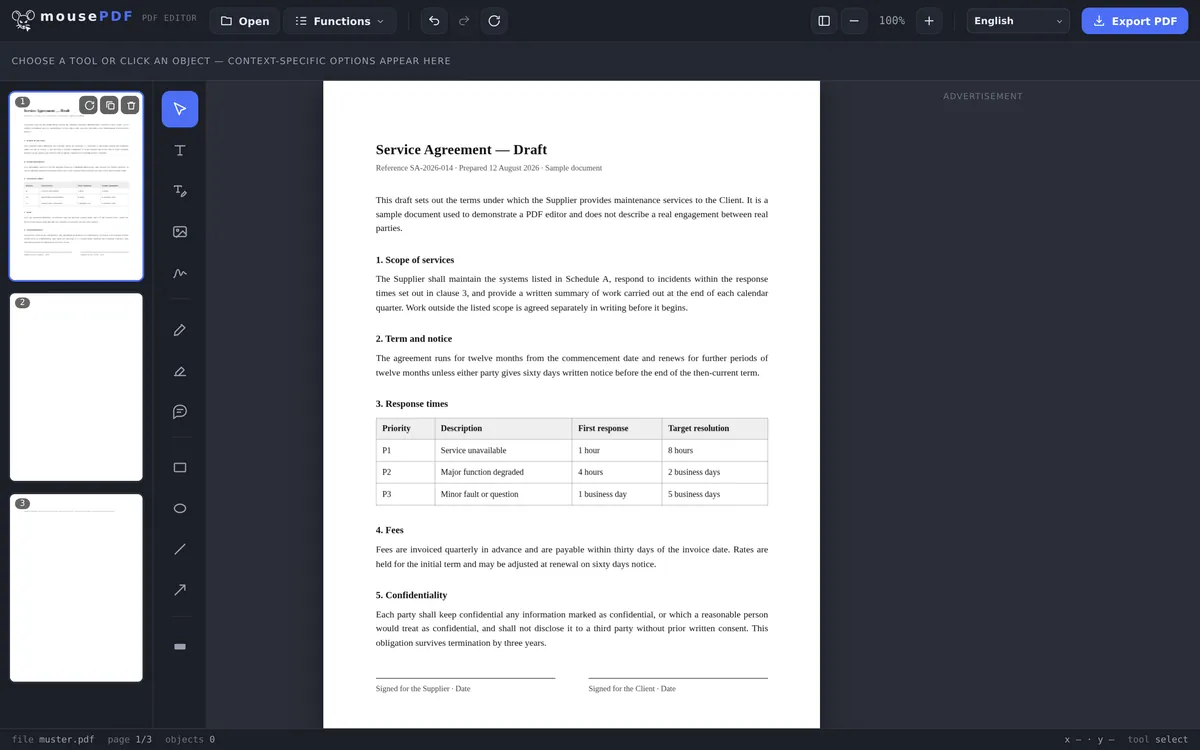
In the page overview, rotate the affected page (or several selected pages) by 90°.
Export
Save the corrected PDF.
Scanned documents come out sideways
Scanning a landscape document or photographing a piece of paper often leaves you with PDF pages turned by 90° or 180°. In the mousePDF page overview you can rotate each page on its own, or select several pages together and put them right quickly in a single step.
Batch rotation for large documents
For longer PDFs, it's often more efficient to rotate several pages at once. Simply select the desired pages in the page overview (Ctrl+click for individual selection or Shift+click for a range) and then click the rotate button. All selected pages are corrected in one step, which helps with scanned books or documents with mixed orientations.
Rotation is lossless: it only changes the orientation, not the page content itself. Text, images, and formatting remain exactly as they were. If you notice something isn't right after rotating, you can undo the action with Ctrl+Z.
The one edit with no downside
Rotating is the cleanest function in the whole editor: nothing is redrawn and nothing recalculated. A PDF records, for each page, the orientation it should be displayed in, and that record is what changes.
So none of the trade-offs other functions carry apply here: text stays searchable, fonts stay fonts, vector graphics stay sharp, and the file size stays practically the same. You could rotate the same page a hundred times without any loss of quality.
Rotation happens in 90-degree steps, page by page or for the whole document at once. In a file where only some sheets were scanned sideways, you rotate exactly those and leave the rest alone.
Why sideways pages happen in the first place
The most common cause is a sheet-feed scanner: put in a stack with one landscape sheet among them and it comes back lying on its side. Photographing documents with a phone is similar: the camera records the orientation, and not every program reads that record the same way.
The second cause is assembled documents: an appendix with a wide table arrives in landscape while the rest is portrait. After merging several PDFs, one page then sits differently from the others.
The only thing to watch is doing the rotation before you pass the file on: turning a sideways page in a viewer does not change the file, so at the recipient's end it will be sideways again. Only exporting makes the rotation permanent.
Frequently asked questions
Can I rotate just a single page, not the whole PDF? +
Yes, every page can be rotated individually, independent of the others.
Can I rotate several pages at the same time? +
Yes, you can select multiple pages and rotate them together in one step.
Does rotating reduce the page's quality? +
No, rotating only changes the orientation. The page content itself stays unchanged.
Can I undo a rotation? +
Yes, use Ctrl+Z (or Cmd+Z on Mac) to immediately undo the last rotation. Multiple rotations can be undone step by step.
Does rotating reduce my PDF's quality? +
No. Only the page's orientation record changes; nothing is redrawn. Even after repeated rotation the file is just as sharp and practically the same size.
Can I rotate individual pages instead of all of them at once? +
Yes. You can rotate each page on its own or all at once, depending on whether only a few sheets were scanned sideways or the whole document was.
Why is my page the wrong way round again after I sent it? +
Because rotating the display in a viewer does not change the file. For the rotation to stick, the rotated PDF has to be exported/saved and that file passed on.
You might also find this useful
Merge PDF
Combine multiple PDFs into one file.
Split PDF
Select a page range and save it as its own PDF file.
Delete PDF pages
Remove one or more pages from a PDF.