 mousePDF
Split a PDF without uploading, right in your browser
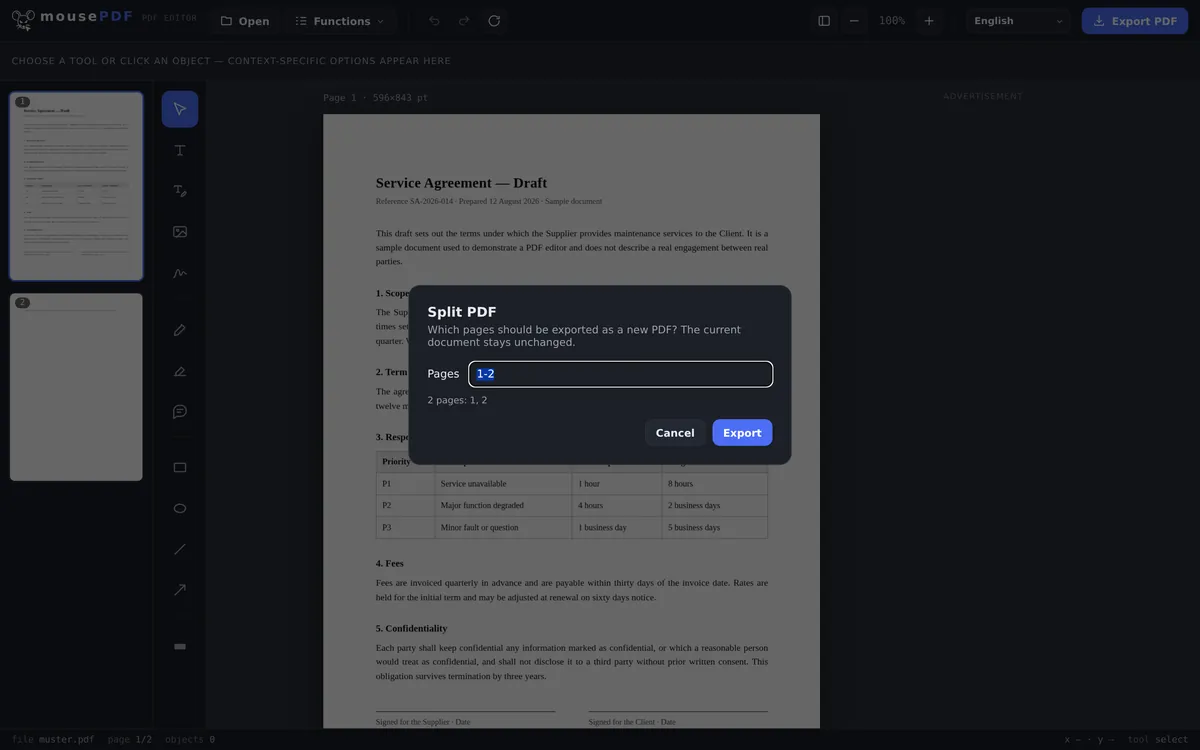
Select a page range (e.g. 1-3, 5, 8-10) and save it as its own PDF. The original document stays untouched.
Three simple steps
Open a PDF
Drag your PDF into the browser window.
Choose a page range
In the “Split pages” menu, enter the pages you want, e.g. 1-3, 5, 8-10.
Export as a new PDF
The chosen page range is saved as an independent, new file.
Your original stays untouched
Splitting a PDF in mousePDF always creates a new file. The document open in the editor is never modified. That means you can export several different page ranges without reloading the source. The other way around, merging lets you combine several files back into one. You can mix individual pages and ranges however you like, for example "1-3, 5, 8-10", which helps when you want to pull out just a few chapters or attachments from a large PDF.
Type a page range instead of clicking every page
The page selection field understands ranges and lists in the same expression: 1-3, 5 gives you a PDF containing pages 1, 2, 3 and 5. Commas separate, the hyphen spans a range.
The order inside the expression does not matter. Pages always come out in their natural order, and a page named twice lands in the result only once. A reversed range such as 7-4 is read as 4-7 rather than rejected.
If you would rather look than type: in the page thumbnails you can also delete pages individually and export the rest as a new file. The result is the same, and with only a few pages it is much faster.
Quality, the original, and the outline
Your source file is left alone. Splitting creates a new file; the original on your disk is neither overwritten nor modified. So you can safely pull several extracts from the same document one after another.
Page content is untouched. The selected pages are copied out of the source, not redrawn and not re-compressed: fonts, images and vector graphics come out exactly as they went in.
Bookmarks are lost. If your file has an outline (the clickable chapter list some PDF viewers show in a sidebar), it will not be in the extract. That is down to how PDFs are built: an outline belongs to the document as a whole, not to the individual pages, and splitting creates a new document. For a three-page extract that hardly matters; for a 200-page manual chapter it does.
Frequently asked questions
Can I extract several page ranges at once? +
Yes, you can combine individual pages and ranges, e.g. “1-3, 5, 8-10”, and all selected pages end up in the same new file.
Does splitting change my original PDF? +
No. A new file is always exported; the document you opened stays unchanged.
Does this work with very long PDFs too? +
Yes, even documents with hundreds of pages. The page list is virtualized so the browser stays responsive.
Can I export each page as its own separate file? +
Not in one click. You'd split out one range at a time. But since the original stays open, you can export several ranges in a row without reloading anything.
Can I pull out several ranges at once? +
Yes, in one expression: 1-3, 8, 12-14 produces one file containing all the pages named. If you need them as separate files, split several times, since the original stays unchanged anyway.
Does this modify my source file? +
No. A new file is always created; your original stays as it was. Nothing is overwritten, and nothing is uploaded.
Are bookmarks kept in the extract? +
No. A PDF outline belongs to the document as a whole, and splitting creates a new one. The page content itself is fully preserved.
You might also find this useful
Merge PDF
Combine multiple PDFs into one file.
Delete PDF pages
Remove one or more pages from a PDF.
Rotate PDF
Fix sideways or upside-down pages.
Compress PDF
Shrink image-heavy PDFs without uploading them.
Convert PDF to images
Export single pages as PNG images instead.