 mousePDF
Highlight and comment on a PDF without uploading
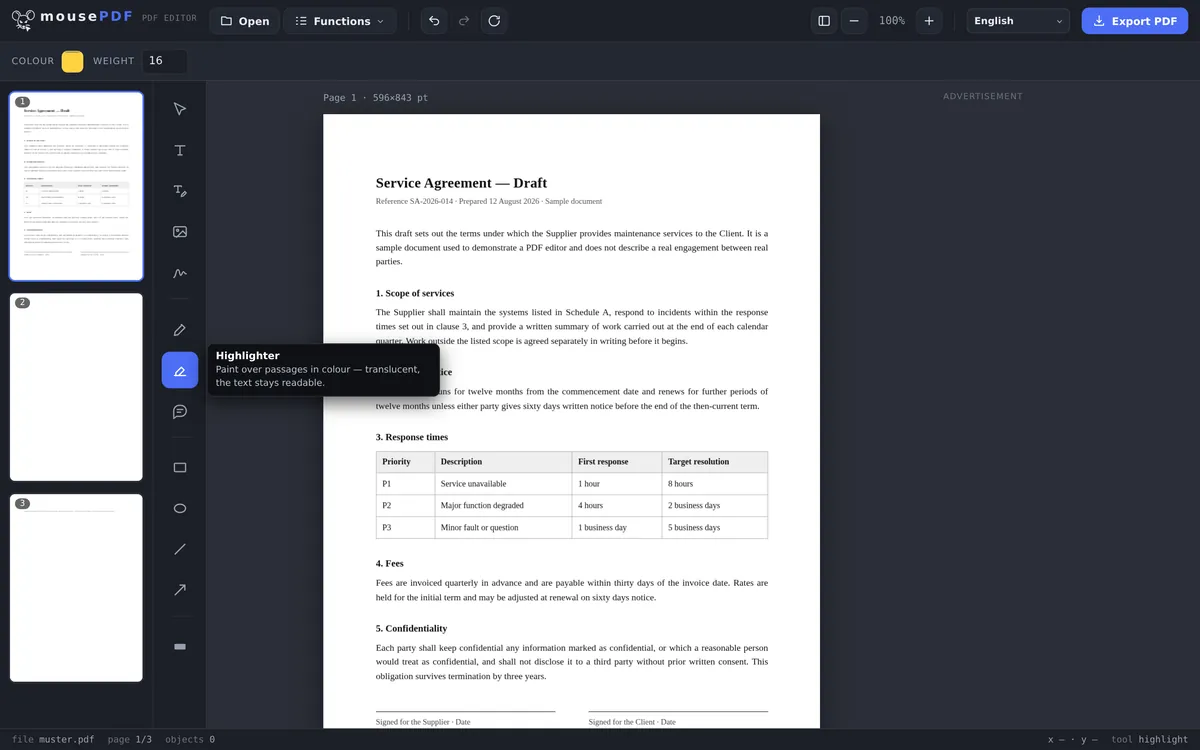
Highlight text passages in color, attach notes as real PDF annotations, or comment with shapes, arrows, and freehand drawing, all visible in any PDF reader.
Three simple steps
Open a PDF
Drop your file here, or pick one from your device.
Choose a tool
Highlighter for marking text, comment for notes, or pen/rectangle/arrow for drawing.
Export
Highlights and comments are written permanently into the PDF.
Comments are real PDF annotations
A comment in mousePDF isn't just a graphic drawn on top. It's saved as a genuine PDF annotation (the standard PDF format for notes), visible and clickable in Adobe Reader, Preview, browsers, and any other PDF app, not only in mousePDF itself.
The marking and commenting tools
There is a highlighter for coloured emphasis, a pen for freehand drawing, notes for remarks in the margin, plus rectangles, lines and arrows for pointing at things. Colour and stroke width are adjustable.
Every mark stays movable until you export: reposition it, resize it, delete it, undo it. Nothing is final until the file leaves the editor.
This is the usual route for review rounds: go through a draft, mark passages, add remarks, and send the annotated version back.
How the annotations sit in the finished PDF
Your marks are drawn into the page content rather than attached as loose sticky notes. That has a practical advantage: they are visible in every PDF viewer, including previews and phones, and they do not vanish when printed.
The difference from Acrobat's clickable comments: there, annotations can be shown, hidden or worked through as a list. Here they belong to the page. For feedback meant for a person that is the more reliable route, since nothing can be missed because a display setting happens to look different.
If you need a clean version without annotations, export it from the unchanged original. Your source file is untouched, so you can keep both versions side by side.
One more note: a highlighter makes text visibly prominent, not unreadable. If a passage needs to disappear, redact a PDF is the right tool, since there the text is genuinely gone.
Frequently asked questions
Are my comments visible in Adobe Reader too? +
Yes. Comments are saved as standard PDF annotations and work in any PDF app, not just the mousePDF editor.
Does the highlighted text stay readable? +
Yes, the highlight is translucent, so the text underneath remains fully readable.
Can I remove highlights afterwards? +
Yes, as long as the file is still open in the editor, you can select and delete any object individually.
Can other PDF viewers see my comments? +
Yes. Comments are saved as real PDF text annotations that every common PDF viewer (Acrobat, Preview, browsers) can display and open.
Will the recipient see my marks in any program? +
Yes. They are part of the page and therefore visible in every PDF viewer, printing included, unlike clickable comments, which can be hidden.
Can I remove marks later? +
In the editor, any time before you export. Not in the exported file. For that, export a fresh version from the unchanged original.
Does highlighting make text unreadable? +
No, quite the opposite: a highlighter emphasises, it does not cover. For making something unreadable, redaction is the right tool.
You might also find this useful
Edit PDF text
Click on existing text in a PDF and replace it.
Fill PDF form
Fill in form fields on screen and save the result as a PDF.
Sign PDF
Draw a signature, type it or use a photo of it, then place it freely.
Add watermark
Place text across every page of your PDF.
Redact PDF
Permanently cover sensitive details in a PDF.