 mousePDF
Edit and replace PDF text without uploading
Click existing PDF text, type over it and save. Font size, colour and baseline are measured from the original. All in your browser, nothing is uploaded.
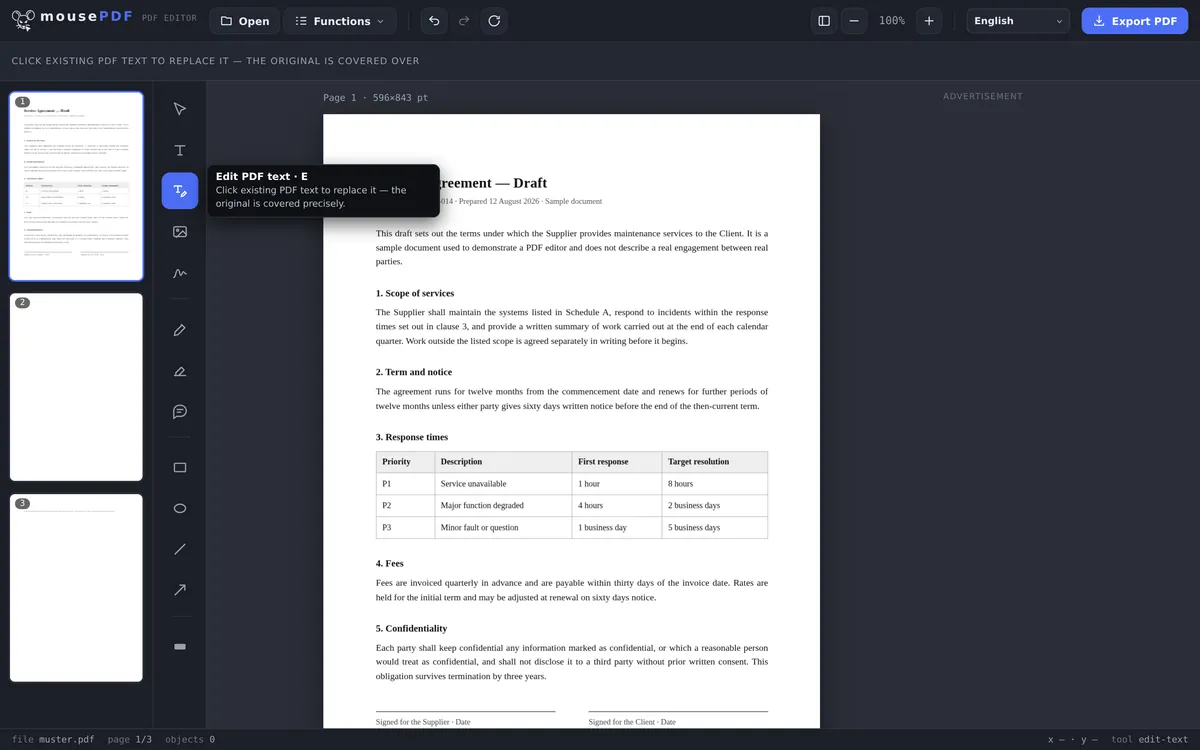
Three simple steps
Open a PDF
Open a PDF by dragging it into the browser.
Choose “Edit PDF text”
Activate the tool and click on the existing text.
Replace the text & export
Type the new text, which precisely covers the original, then save.
The old text is replaced, not painted over
Many free PDF tools can only place new text boxes on top of a page. mousePDF goes further: you can click directly on existing text in the PDF and replace it with new text. The original is precisely covered, so only the new text is visible at that spot. This is useful for things like updating a date, a name, or a single price in an existing document, without having to recreate the whole page.
Common use cases
Correcting a date or deadline. The contract still shows last month's delivery date? Instead of recreating the document, click the line and type the right date.
Updating a price or address. An invoice with the wrong amount or an outdated address is annoying but easy to fix. Just click the text and enter the correct details.
Fixing a typo. A misspelled name or a transposed number in an official document looks unprofessional. With the text tool, the mistake is corrected in seconds.
Why PDF text can't be edited the way Word text can
A PDF is not a text document but a description of where each character sits on the page. There are no paragraphs that could reflow and no lines that shuffle up. That is exactly why a PDF looks the same everywhere, and exactly why editing one is a different matter from editing in Word.
mousePDF takes the honest route: the old spot is covered over and the new text placed on top. The editor reads the surrounding font size and colour so the change does not stand out.
In practice: short corrections work well. A wrong date, transposed digits, a misspelled name, an out-of-date phone number. Rewriting a whole paragraph is laborious, because nothing reflows by itself.
What happens to those pages on export
An edited spot consists of a cover and new text. So that this does not remain a trick anyone can undo, such a page is burned in as an image when you save. The old text underneath genuinely disappears, with no setting and no checkbox involved.
The price: on burned-in pages the text is no longer searchable or selectable. Only the pages you actually changed are affected; the rest are left alone.
This applies to the whole page, not just the edited spot. Correct a date on page 3 and page 3 has no searchable text afterwards, while the other pages are untouched. If you need the text back later, text recognition (OCR) can regenerate it from the image.
For larger rewrites the detour is often quicker: convert the PDF to Word, write there, then convert back. The text transfers in full; images and layout do not.
Frequently asked questions
Can I really change existing PDF text, not just cover it? +
Yes. Clicking with the “Edit PDF text” tool precisely covers the original text and replaces it with your new text, so visually it looks like a real edit.
Does this work with any font in the PDF? +
For most PDFs, yes. mousePDF embeds fonts directly and also supports many non-Latin scripts like Arabic, Chinese, or Devanagari.
Does the text stay searchable and selectable afterwards? +
While you type it is real text. In the saved PDF it is not, because the edited page is burned in as an image, so the new text is no longer searchable either. Only the pages you actually changed are affected. OCR can make such a page searchable again.
What happens to the original text underneath? +
It's precisely covered by a white rectangle at the same position, with your new text drawn on top. The original bytes are still technically in the file, but for all practical purposes (printing, viewing, copying) only your replacement is visible.
Can I rewrite a whole paragraph? +
Technically yes, in practice laboriously: nothing reflows in a PDF, so you set the line breaks yourself. For bigger changes it is worth the detour through a proper word processor.
Will the edit be visible in the finished PDF? +
Usually not, because the editor picks up the surrounding font size and colour. With unusual corporate typefaces a difference can remain, because the original font is not always available.
Is the old text still in the document afterwards? +
No. The page is burned in as an image when you save, and the old text disappears with it. For confidential passages redaction is still the right tool, since there removal is the purpose rather than a side effect.
You might also find this useful
Highlight & comment
Highlight text and attach real PDF annotations.
Fill PDF form
Fill in form fields on screen and save the result as a PDF.
Sign PDF
Draw a signature, type it or use a photo of it, then place it freely.
Add watermark
Place text across every page of your PDF.
Redact PDF
Permanently cover sensitive details in a PDF.
PDF text recognition (OCR)
Make scanned PDFs searchable, in multiple languages.