 mousePDF
Compress a PDF without uploading, right in your browser
Shrink image-heavy PDFs without uploading them. mousePDF checks in advance whether compression will actually make a difference for your document.
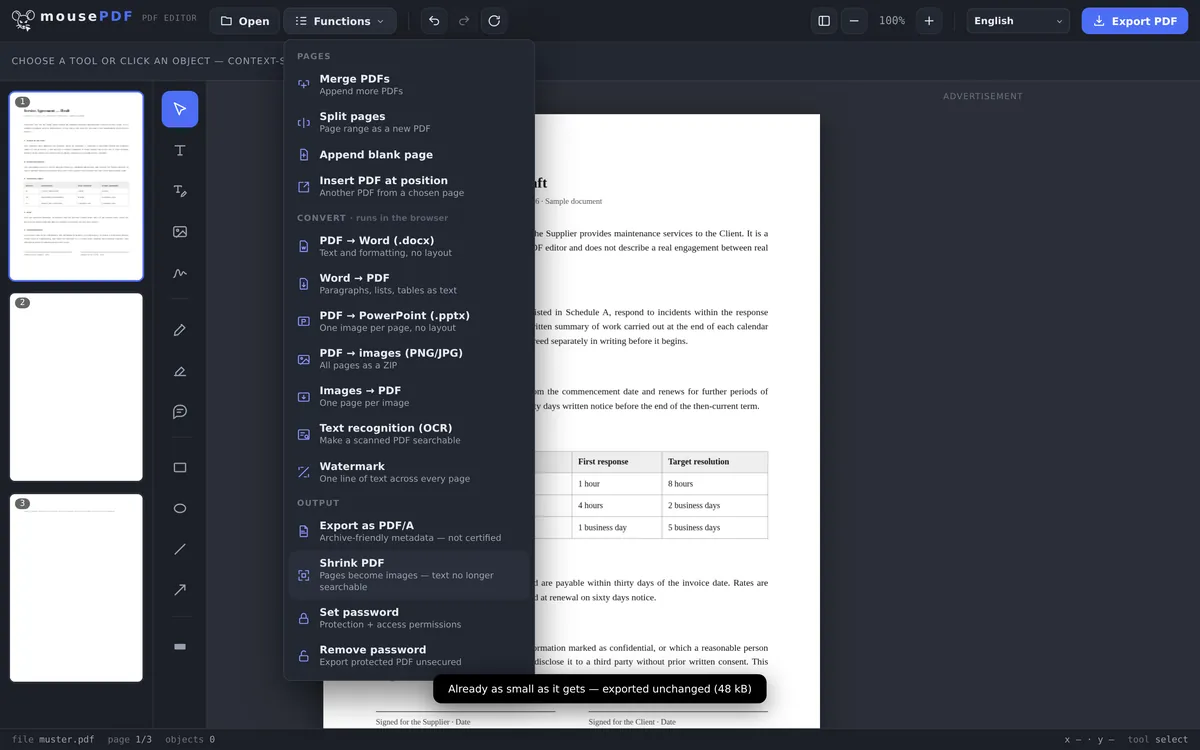
Three simple steps
Open a PDF
Drag your PDF into the browser window.
Choose “Compress PDF”
The editor reports afterwards how much smaller the file got, in percent.
Export the compressed file
Save the result as a new, smaller PDF.
Honest, instead of always promising “compressed”
mousePDF shrinks PDFs by re-rendering pages as images, which often brings a real reduction for scanned or image-heavy documents. For PDFs that are already mostly text, the effect is small, and the editor tells you so upfront.
One thing to know: after compression, the text on those pages is no longer searchable or selectable. If you need searchable text afterwards, you can run text recognition (OCR) on the result, since it has been turned into an image. That's usually fine for a PDF you just need to send or archive, but not for one you'll need to search or copy text from later.
When is compression worth it?
Scanned documents by email. Scanners often produce huge files that no mail server will accept. A quick compression shrinks even multi-page scans to fit comfortably under your email provider's limit.
Job applications under 5 MB. Many career portals only accept uploads up to 5 MB. If your cover letter and certificates are scanned, compression brings the file back under the cap.
Photo-heavy PDFs for cloud storage. PDFs with lots of embedded photos can quickly eat up hundreds of megabytes. After compression they'll fit even in cloud accounts with limited storage.
Inside the compression step
The editor builds your document twice: once normally, and once with every page redrawn as an image at 1.5× the page size and 70 % JPEG quality. It then compares the two finished files and hands you the smaller one.
That is why there is no prediction before you click: only once both versions exist is it clear whether rasterising helped at all. Afterwards the editor reports the outcome in numbers, for example “Compressed: 40 kB → 19 kB (51 % smaller)”.
It is deliberately one pass and not three. Each further attempt would raster the whole document again, and on PDFs with a lot of pages that costs noticeable time, without the gain being proportionate.
The price you pay for a smaller file
Text stops being text. That is the price, and it is not a small one: the text on a page drops to zero entirely, while the file shrinks by roughly half. What looks like text afterwards is pixels: no longer searchable, selectable or copyable.
Fonts and vector graphics become pixels too. A drawing that could previously be enlarged indefinitely now goes soft when you zoom in far. For a document you only send or file away this rarely matters. For a master copy you keep working on, it does.
If rasterising wouldn't help, nothing happens. When the rasterised version is not smaller than the original — the normal case for text-only files — the editor exports the file unchanged and reports “already as small as it gets”. So you never end up with a worse file that isn't also a smaller one.
If you need the text back later, PDF text recognition (OCR) helps: it lays a fresh text layer over the images. Note that it reads the text back out of the picture, so it does not necessarily match the original exactly.
Frequently asked questions
Why won't my PDF get any smaller? +
Text-only PDFs are usually already very compact. Compression mainly helps scanned or image-heavy documents. If rasterising wouldn't help, the editor exports the file unchanged and tells you so.
Is the text still searchable after compressing? +
No. Compressing turns pages into images, so text is no longer searchable or selectable afterwards. That's a deliberate trade-off for a smaller file size.
Is my file uploaded anywhere for this? +
No, compression runs entirely in your browser, just like every other mousePDF feature.
Will I notice a difference in how the PDF looks? +
No. The compressed pages look the same visually. The only difference is that you can't select or search text on them anymore, which is the trade-off for the smaller file size.
How much smaller will my file get? +
That depends entirely on the content and cannot be known in advance. For a scanned document, around half is typical. For a text-only file it is often 0 %, because rasterising gains nothing there, in which case the file stays unchanged.
Can I undo the compression? +
Not inside the compressed file: turning pages into images is final. Your source file is untouched on your disk, though, so you can always start over.
Why do I sometimes get a file of the same size back? +
Because rasterising would not have helped in that case. Rather than hand you a worse file, the editor exports the unchanged version and tells you so.
You might also find this useful
PDF text recognition (OCR)
Make scanned PDFs searchable, in multiple languages.
Convert PDF to PDF/A
Convert to the archive-friendly PDF/A format for long-term storage.
Split PDF
Select a page range and save it as its own PDF file.
Convert PDF to images
Export every page as a PNG image.
Convert images to PDF
Photos quickly add up to a large PDF, which is exactly when shrinking pays off.